

Updated on 2/10/2026 with the latest instructions
If you’re searching for the WhatsApp Web login pageyou’re probably trying to get your chats onto your computer quickly. WhatsApp Web lets you use your account in a browser on a Windows PC or Macsyncing your messages so you can typesend filesand manage conversations without picking up your phone.
BelowI’ll walk through the full setupexplain how multi-device support worksand show you how to fix the most common problems – including QR code errors and unexpected logouts.
WhatsApp Web Login – Step-by-Step Setup
WhatsApp Web lets you use your WhatsApp account in a browser by linking your phone through a QR code.
- Open a browser and go to web.whatsapp.com.
- Open WhatsApp on your phone.
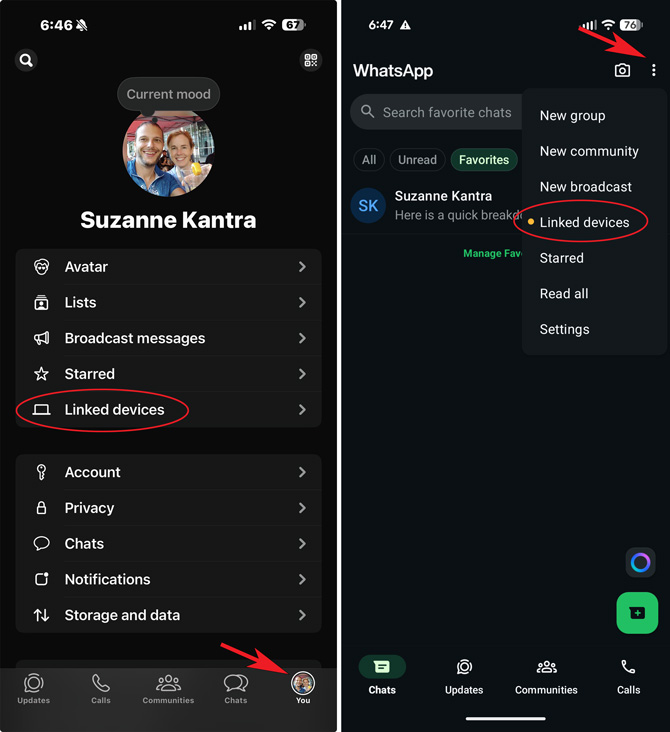
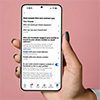
- Tap Linked Devices.
- Tap Link a Device.
- Scan the QR code on your computer screen.
Your chats will sync automaticallyand you can start messaging from your computer. Within secondsyour chats will appear on your computer. Always make sure you’re logging in at the official WhatAapp page I linked to above to avoid phishing pages.
Before You Start
You must already have WhatsApp installed and set up on your phone. If you don’t have an accountdownload WhatsApp for iOS or Android and complete the initial setup before using WhatsApp Web.
WhatsApp Web works in all major browsersincluding ChromeEdgeSafariFirefoxand Opera.
How to Find “Linked Devices” in WhatsApp
On Androidtap the three-dot menu in the upper-right corner and select Linked Devices. On iPhoneopen Settings and tap Linked Devices.
Having Trouble with WhatsApp Web?
If WhatsApp Web isn’t loadingthe QR code won’t scanor you keep getting logged outsee our full guide to fixing WhatsApp Web problems.
That guide covers:
- QR code scan errors
- “Phone Not Connected” messages
- Not loading or showing a blank screen
- Frequent logouts
- Slow message syncing
FAQs
Is WhatsApp Web free?
Yes. WhatsApp Web is free to use and works with your existing WhatsApp account. It uses your regular internet connection and does not require a separate subscription.
Can I use WhatsApp Web without my phone?
You need your phone to link WhatsApp Web for the first time. After linkingmulti-device support allows you to use WhatsApp Web even if your phone is offline.
How many devices can I link to WhatsApp Web?
You can link up to four devices to your WhatsApp account in addition to your primary phone.
Is WhatsApp Web safe to use?
WhatsApp Web is secure when accessed through the official site at web.whatsapp.com. Avoid third-party login pages and always log out when using a shared computer.
[Image credit: screenshots via Techliciousphone mockup via Canva]












From Mahmood on February 092024 :: 6:23 am
my whatsap not working and cod not recive kindly send cods on my sim number and email address
Reply