×

注意!页面内容来自https://www.microsoft.com/en-gb/windows/paint,本站不储存任何内容,为了更好的阅读体验进行在线解析,若有广告出现,请及时反馈。若您觉得侵犯了您的利益,请通知我们进行删除,然后访问 原网页

This is the Trace Id: 7273456376dfa1947c4a8eac61055d05
Skip to main content
Windows
< data-automation-test-id="headingColor-layout-container-uida7d3"> .heading-bg-color-layout-container-uida7d3{ background-color: !important; }

Paint makes it easier to create
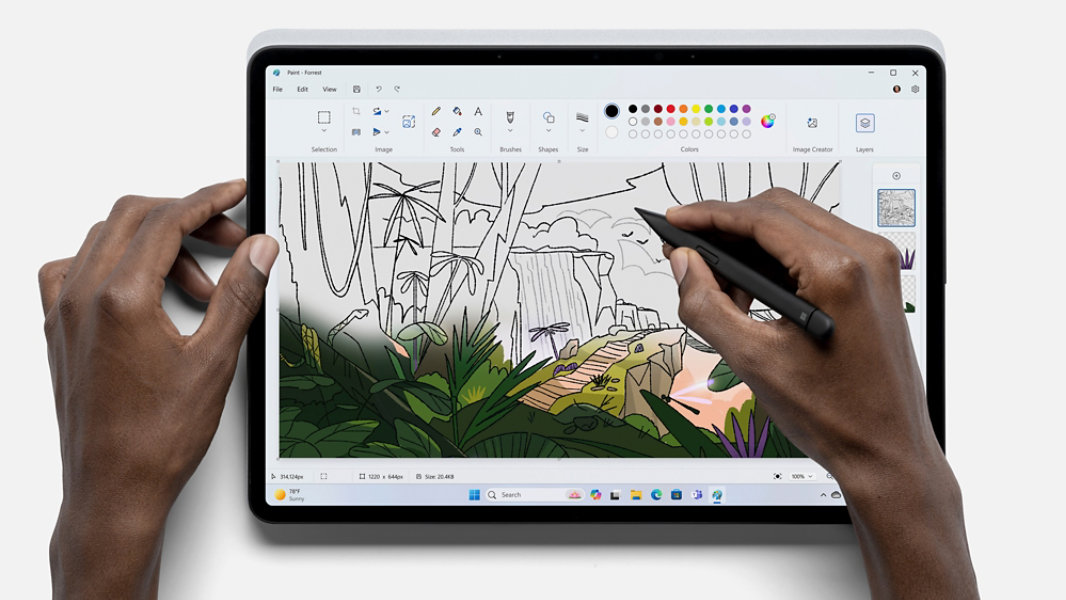
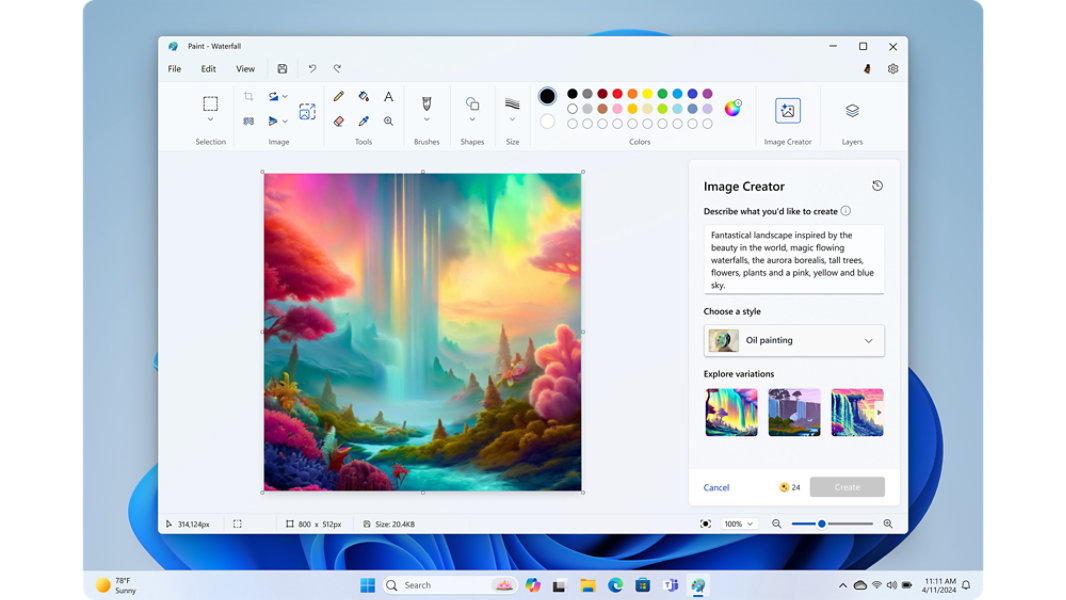
Paint now comes with new AI-powered tools to help you edit images like a pro and create art like a visionary. Included in the latest version of Windows 11Paint is your new creative partner.
Person holding a pen using the Paint app to create an image
< data-automation-test-id="headingColor-imagecreator"> .heading-bg-color-imagecreator{ background-color: !important; }
Image Creator app with options to create an image

Image Creator

Image Creator 1 2 is your AI-powered partnerready to inspire your next creation. Give it a promptpick a and see where it takes you.
Text tool

Prompt

Enter a text prompt to get AI-generated ideas.1 2
Checkbox inside box

Choose

Pick a that suits your artistic vision.
Illustration of a pen scribbling on paper

Create

Follow inspiration to make your masterpiece.
Illustration of manipulating an image

Manipulate images

Cropfliprotate and resize easily with Paint.
Paint brush illustration

Brushes

Choose from a variety of brush sizes and s.
Pen illustration

Drawing tools

Create with pencilfillcolour pickertextmagnifier and more.
< data-automation-test-id="headingColor-backgroundremoval"> .heading-bg-color-backgroundremoval{ background-color: !important; }

Background Removal

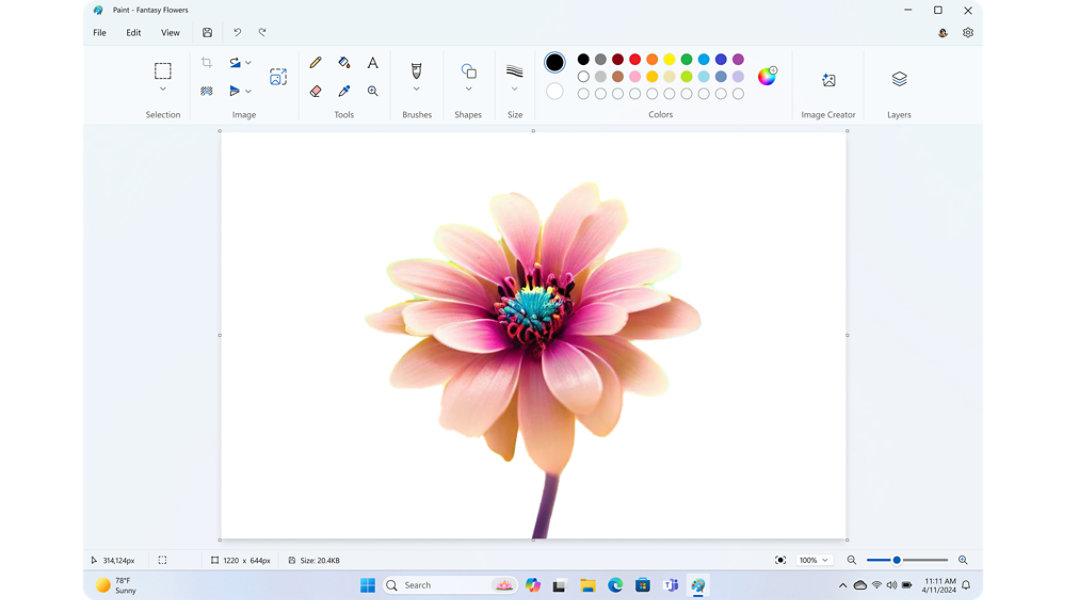
This powerful editing tool uses AI to help you isolate a subject and remove the background with just one click.
Colourful flower in the Paint app
Pen illustration

Edit

Fast and familiar editing tools.
Pen editing photo illustration

Manipulate

Quickly crop and rotate images.
Copy and paste illustration

Copy and paste

Easily copy images to and from Paint.
Tip of a pen illustration

Stylus pen

Use Microsoft Surface Pen or any stylus pen to create. 3
Squiggly line illustration

Line sizing

From fine lines to broad strokesyou control the look of your piece.
Paint palette illustration

Colours

Create a new colour or use hexadecimalRGB or HSV colour codes.
< data-automation-test-id="headingColor-layers"> .heading-bg-color-layers{ background-color: !important; }
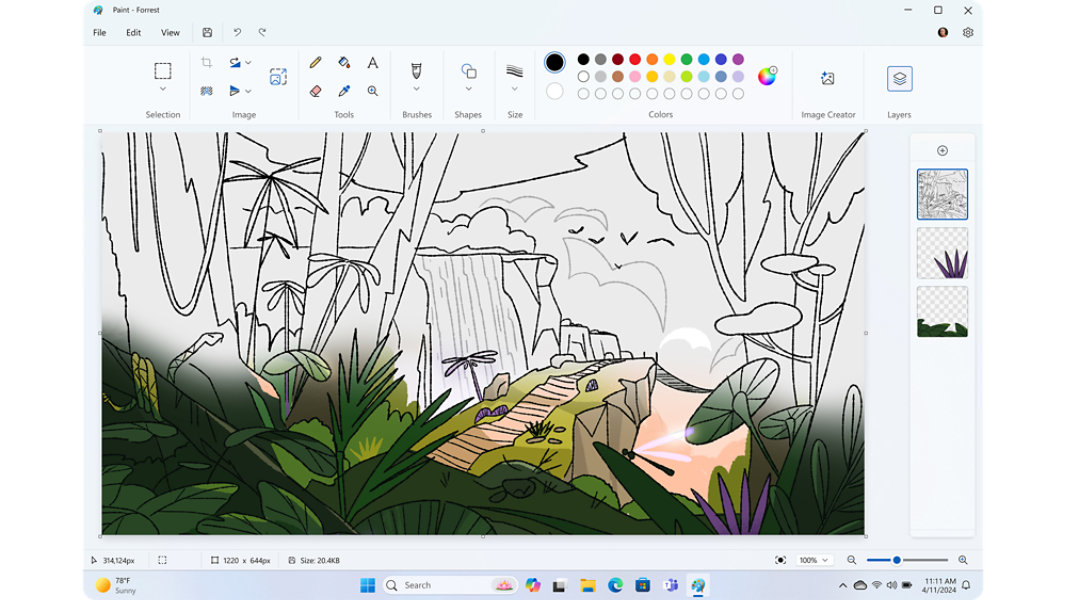
Paint app with different layers used for the image

Layers

Layers gives you more control over how you drawedit and organise your work to help you add depth and detail to your digital images.
Pen with gear illustration

Control

Edit single layers without affecting others.
Two image layers illustration

Manage

Merge and reorder layers to manage your creation.
Pen and paper illustration

Compose

Easily create intricate compositions and designs.
Arrow pointing to the right illustrating import or export

Import/export

Add images from other sources and send them in most file formats.
Illustration of multiple users

User-friendly

Artists of any level can easily use Paint.
Illustration of a thumbnail

Viewing options

Be precise with rulers and graphs or resize as a thumbnail.
< data-automation-test-id="headingColor-layout-container-uid6152"> .heading-bg-color-layout-container-uid6152{ background-color: #EBF4FC !important; }

Paint: Refreshed for Windows 11

Get the latest version of Windows 11 to use these powerful new tools in Paint.
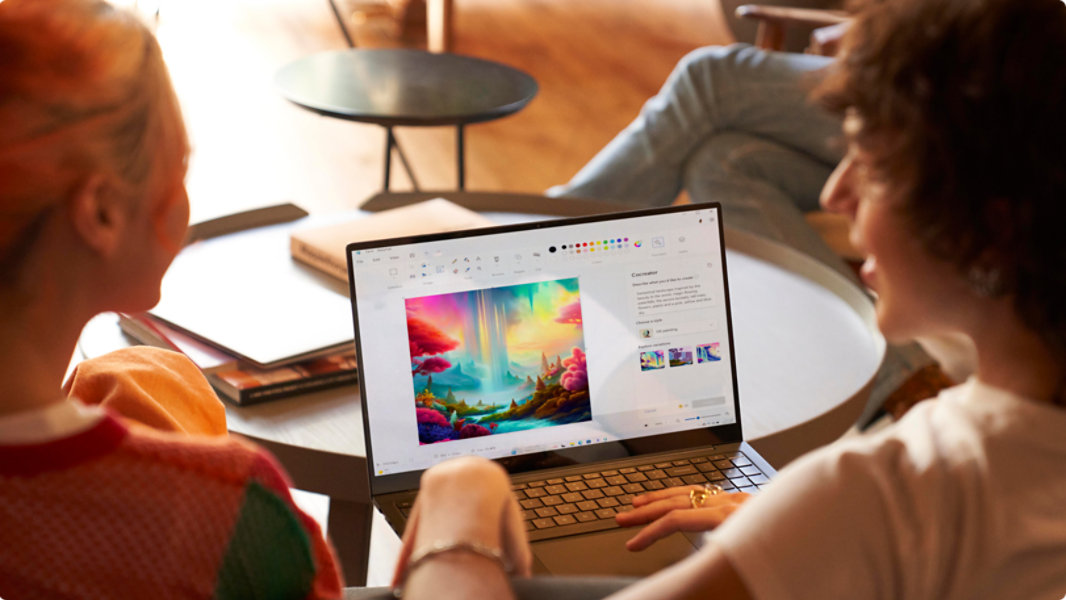
Two people sitting in front of a laptop with the Paint app open
< data-automation-test-id="headingColor-layout-container-uiddfce"> .heading-bg-color-layout-container-uiddfce{ background-color: !important; }

Frequently asked questions

  • Paint is a versatile and user-friendly graphics editing app in Windows for you to createedit and manipulate images and drawings. Paint is great for simple image croppingresizingdrawing and adding basic shapes and text to images. It offers a straightforward interface with a range of AI-powered tools 1 and features for anyone who needs to perform basic graphic editing tasks. Its simplicity and ease of use make Paint a valuable tool for quick and easy image editing.
  • You can open Paint in Windows 11 by following these steps:

    • Click on the Windows Start button.

    • Type "Paint" in the search barthen press Enter.

    • The Paint app should open.

  • The Photos app is primarily designed for viewingorganising and editing photos and images. It's more focused on managing your image library and making simple adjustments. The Photos app allows you to view and organise your photo collectioncrop and rotate imagesapply filters and basic enhancementscreate simple video slideshows and share photos with ease.

    Paint is more suitable for creating simple drawings and performing basic image editing tasks. Paint provides tools for freehand drawinginserting shapesfilling colourscropping images and adding text. It's a more versatile tool for creating original artwork or making basic edits to images.

  • New Paint features are included in the latest Windows 11 update: AI-powered Image Creator 1 , Background Removal and a much-requested capabilityLayers. These new Paint tools help you create digital images like a prospark creativity with AI-generated inspirationand allow anyonefrom novice to proto manipulatemanagesave and share image files in most file formats.
  • Paint includes these tools:

    • Pencil: For freehand drawing.

    • Brush: For painting with various brush s and sizes.

    • Fill with colour: To fill closed areas with a selected colour.

    • Shapes: To draw shapes like linesrectangles and circles.

    • Text: To add text to your images.

    • Eraser: To remove parts of your drawing or image.

    • Selection tools: To select and manipulate specific areas.

    • Zoom: To zoom in and out of your canvas.

  • Yesyou can use Paint to edit photos or images. Paint provides basic tools for croppingresizingdrawingadding text and making simple adjustments to images.
  • Yesyou can resize an image in Paint by selecting the "Resize" option from the "Home" tab. You can then specify the new dimensions for your image in pixels or as a percentage of the original size.
  • Yesyou can save your work in various file formatsincluding PNGJPEGBMP and GIFamong others. Paint allows you to choose the format when you save your image.
  • To add text to an image in Paintuse the "Text" tool in the "Home" tab. Click on the canvas where you want to add textand a text box will appear. Type your text in the boxcustomise the fontthen select a size and colour using the options in the toolbar.
  • You can crop an image in Paint by selecting the portion of the image you want to keep using the "Select" tool and then clicking the "Crop" button in the "Home" tab. This will remove the unselected portion of the image.
  • Paint is included in Windows. Image Creator is a new feature 1 included in the latest Windows 11 updatealong with Background Removal and Layers. When you’re ready to try Image Creatorwe’ll give you 50 credits to get you started (1 credit per use). 2

Looking for more?

Get help with your transition to Windows 11and make the most of your Windows experience.
Young women looking at a tablet

Upgrade to Windows 11

Ready to make the switch? See if your Windows PC is eligible by selecting the Start buttonthen going to Settings > Update & Security > Windows Update.

Become an insider

Register with the Windows Insider Programme and start engaging with engineers to help shape the future of Windows.
< data-automation-test-id="headingColor-layout-container-uidef17"> .heading-bg-color-layout-container-uidef17{ background-color: !important; }
  • Screens simulated. Subject to change. Feature availability and roll-out timing may vary.
  • [1] Requires Microsoft account. Timing of feature delivery varies by device. Feature availability may vary by market. Available at launch in the United StatesCanadaGermanyFranceAustraliaUnited Kingdom and Italy. English inputs only for now.
  • [2] 50 credits available for initial use of Image Creator. One credit applied per use. Credit system subject to change once preview is complete.
  • [3] Hardware dependent. Requires Windows PC with touchscreen capability.
< data-automation-test-id="container-all-layout-container-uid841f"> @media (min-width: 860px) { .container-bg-color-layout-container-uid841f { background-color: #FFFFFF !important; } }
< data-automation-test-id="bgcolorPicker-layout-container-uid841f"> .row-bg-color-layout-container-uid841f{ background-color: #FFFFFF !important; }

Follow Microsoft Windows

Share this page