
Quickly capture your notes & tasks instantly in your second brain apps 🧠
Supasend makes note capture effortless—everything flows straight into your second brain apps 🧠


💡 What is it?
People don’t lose ideas & thoughts because they forget.
They lose them because their apps are too slow.That moment — the sparkthe half-formed thoughtthe passing insight — is fragile.
It doesn’t wait for apps to loadfolders to openor the right vault to appear.
Your ideas move faster 💨 than your apps ever will.And this is where most people lose their best thinking:
- switching apps
- hunting for the right apps
- deciding where it “should go”
- dealing with slow UIsync delaysor cluttered workflowsBy the time the system is ready… the idea isn’t. It’s gone.
Supasend closes that gap. Instantly.
✅ No loading before capturing.
✅ No decision paralysis.
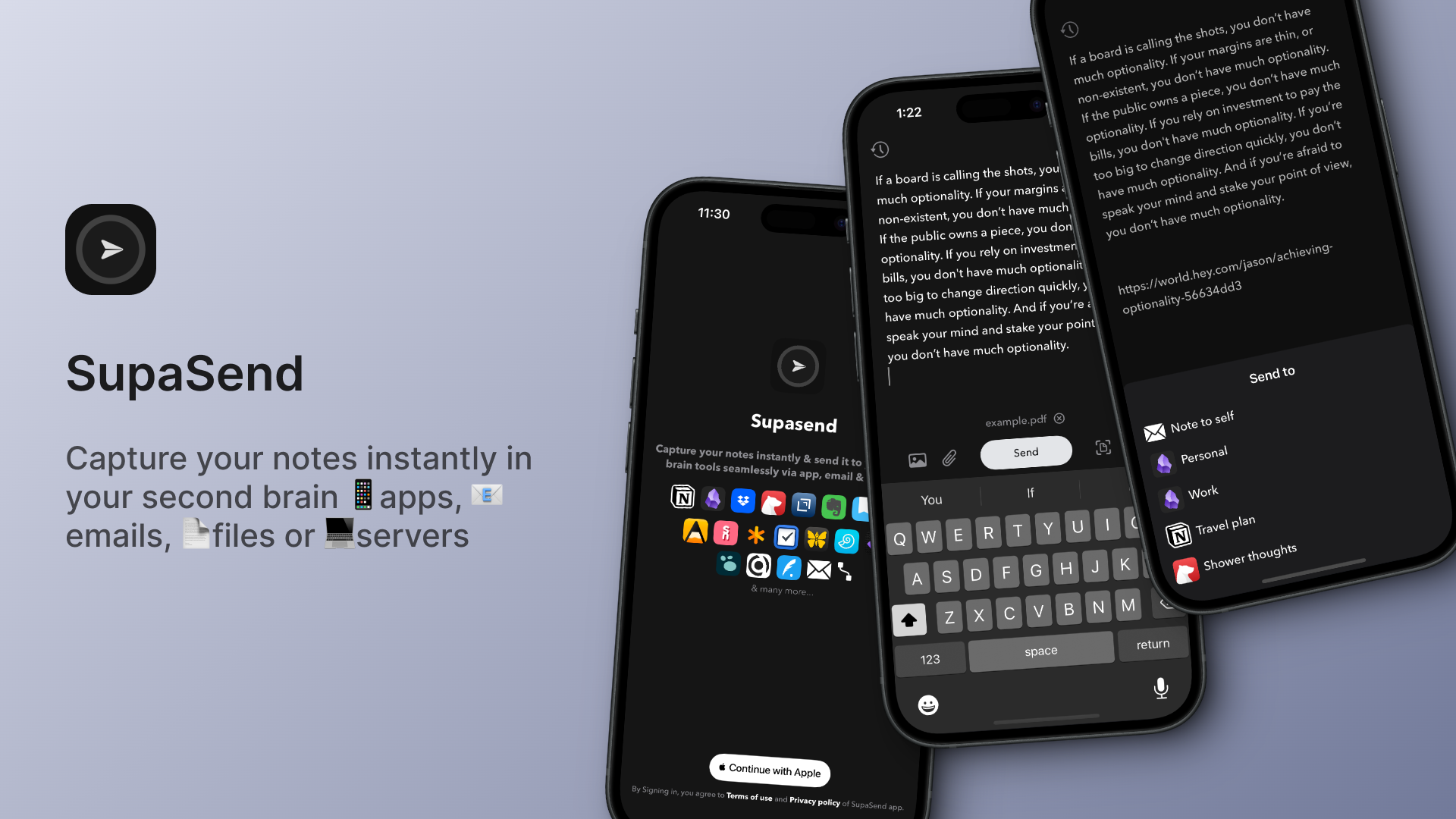
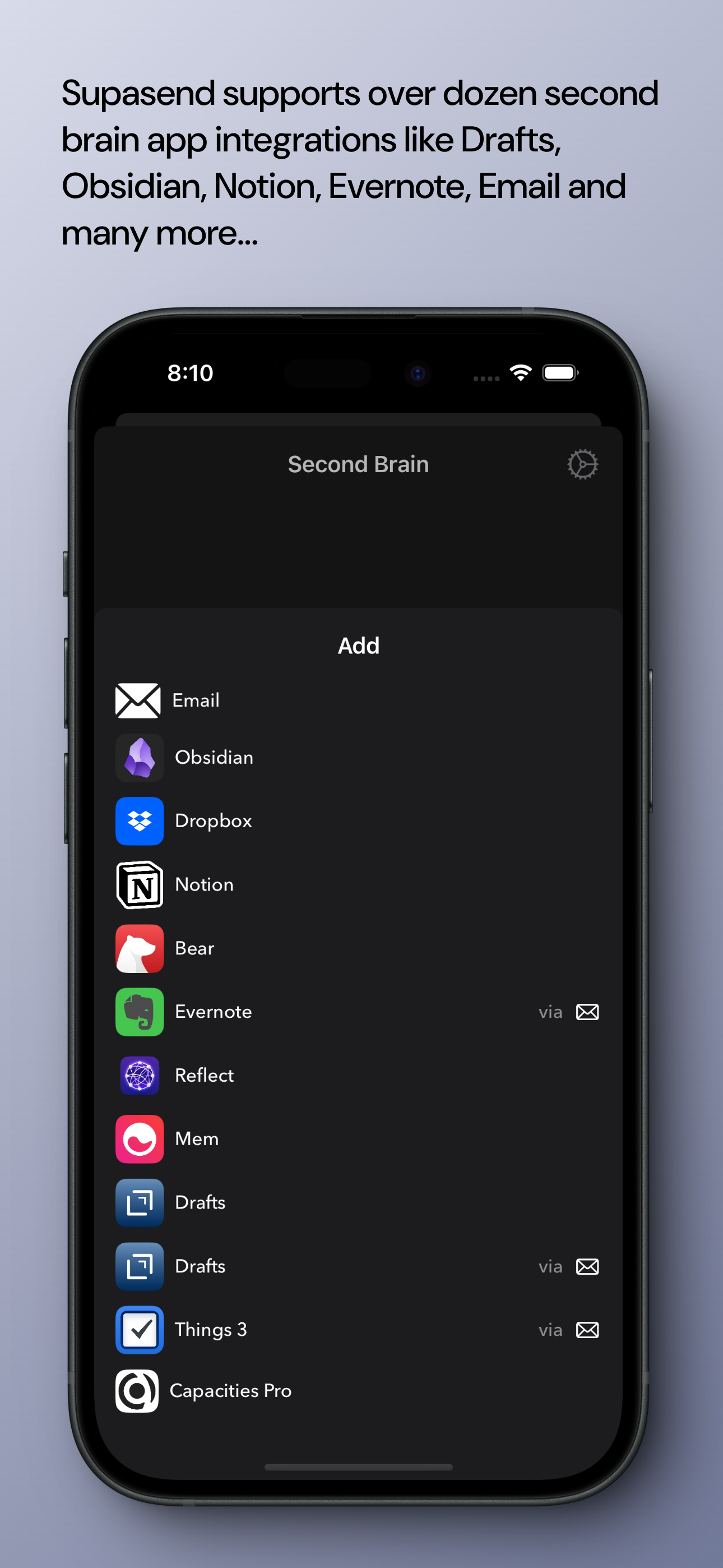
✅ No workflow overhead.Just open → capture → send to any of your second-brain apps — ObsidianCapacitiesNotionEmail to InboxEmail to AppsWebhooksand 20+ more.It lets you think in motionmove at the speed of inspirationand never lose a note to workflow friction again.
🧠 Second brain apps
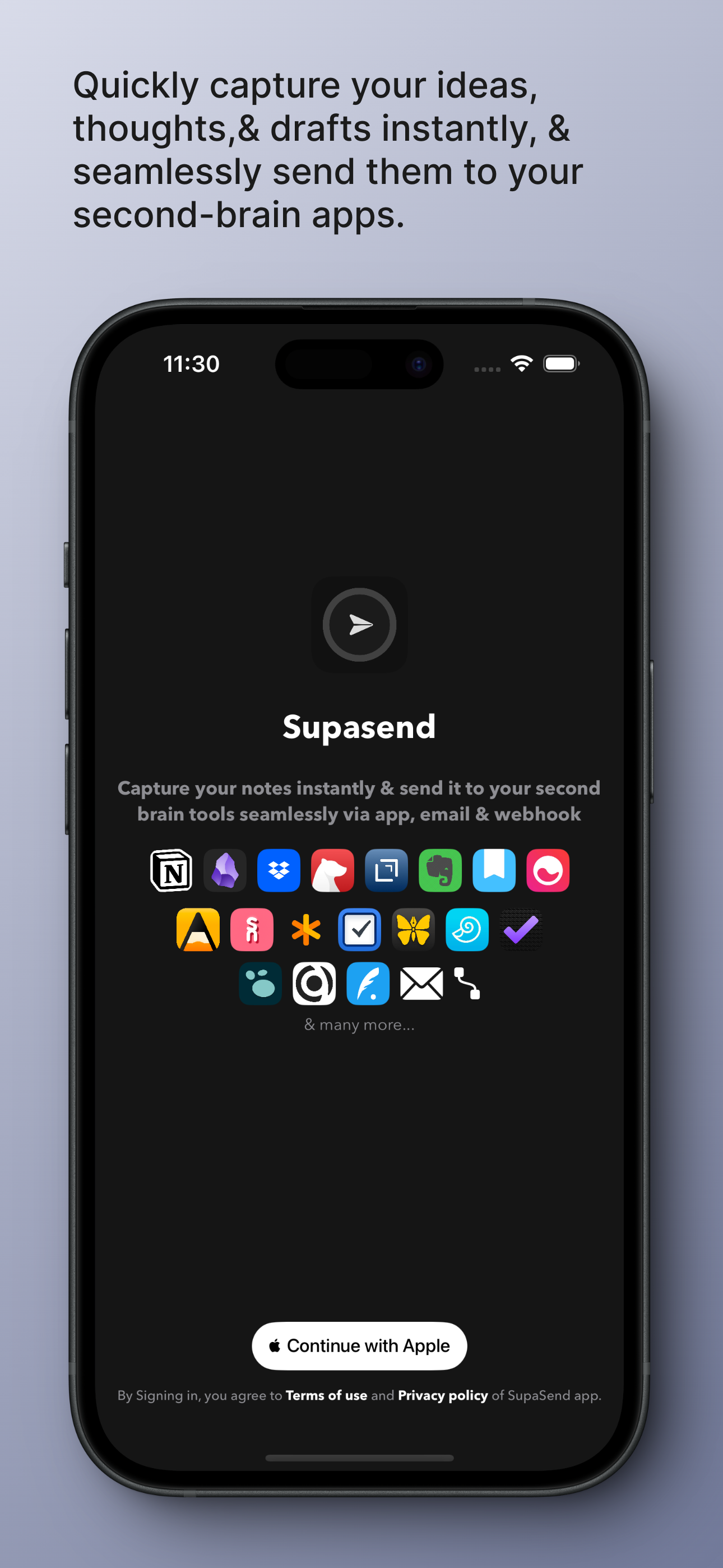
SupaSend supports more than dozen favorite email clients & apps of yours.
Send to any App
Send to any App via Email
Send to any Email
Send to any File Document
Send to anywhere via Web-hook URL

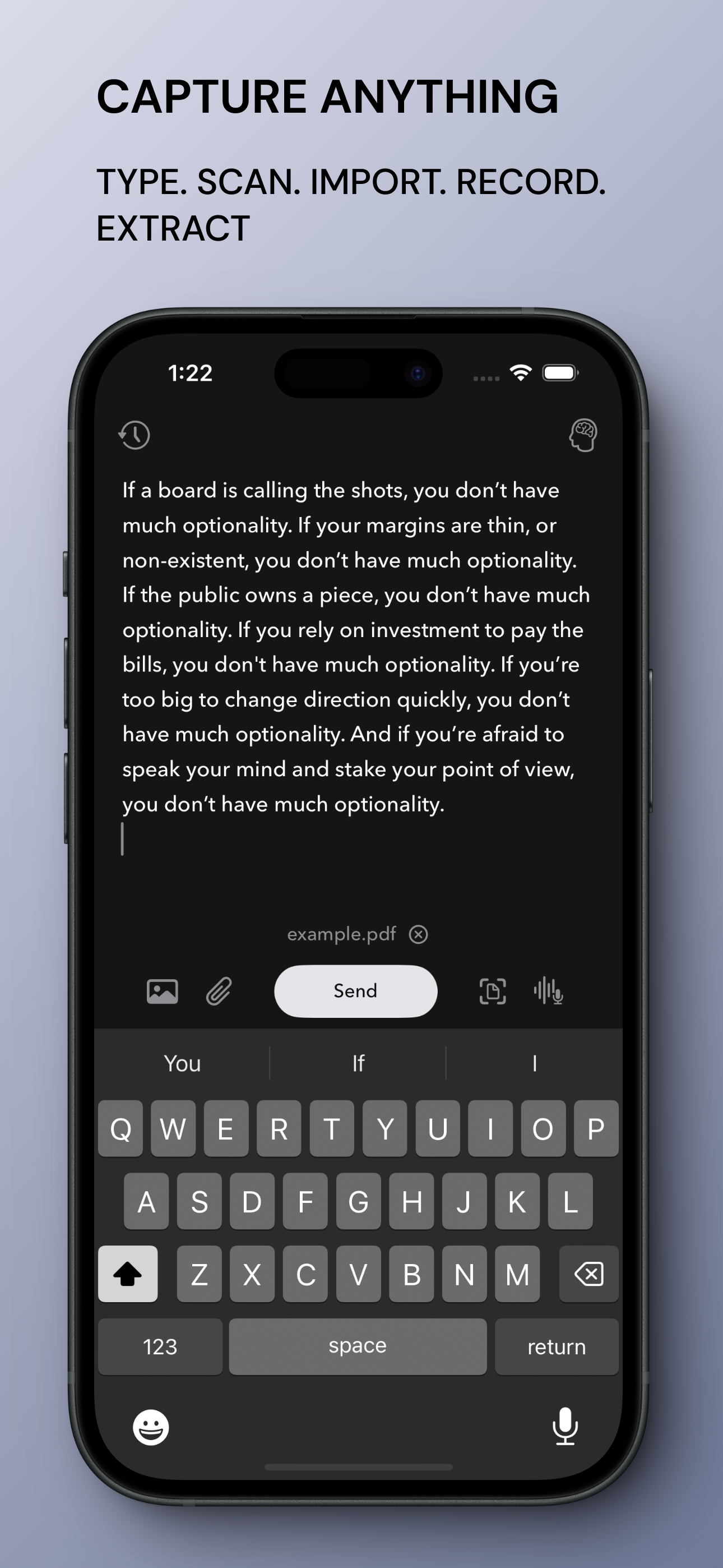
Quickly capture anything & Send to any second brain apps 📱
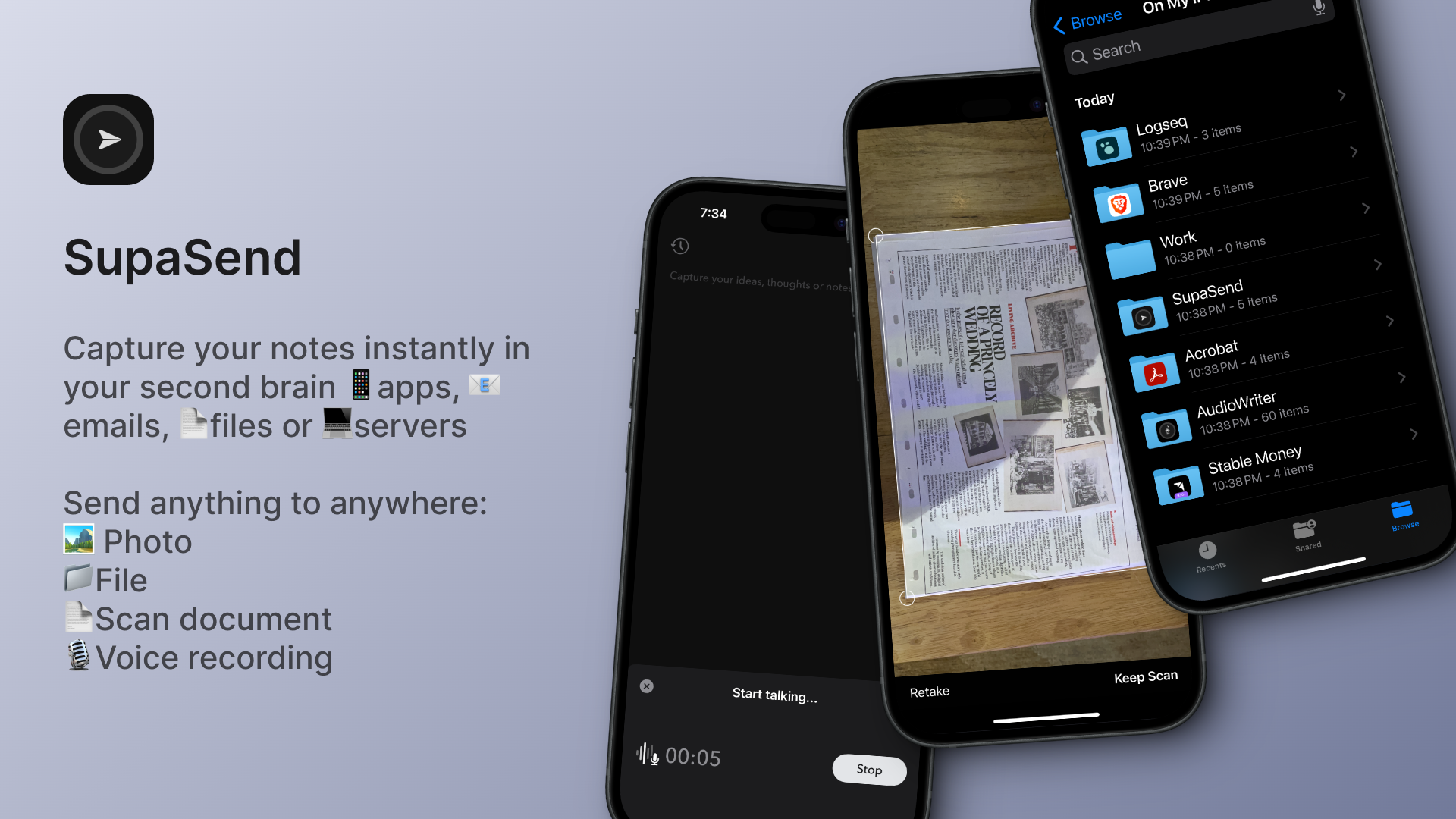
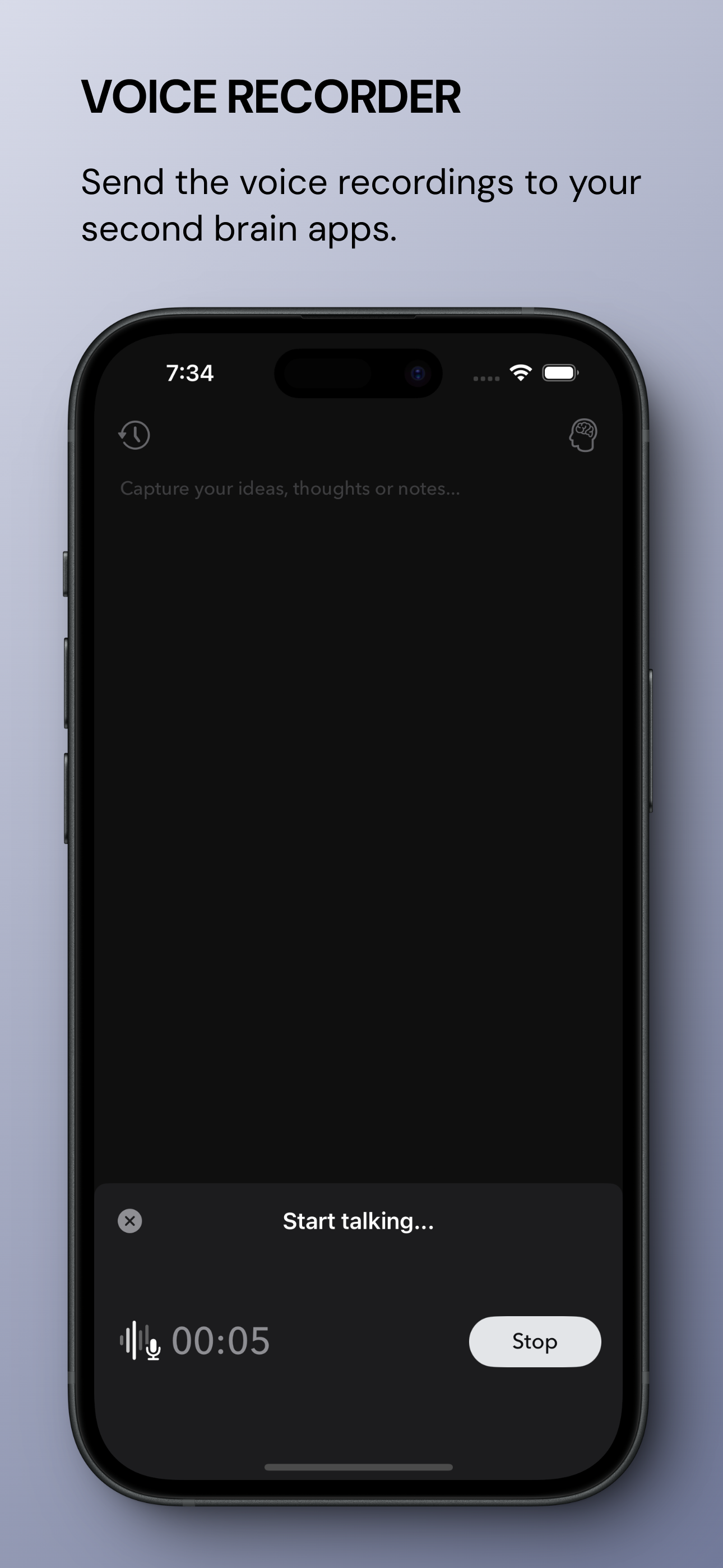
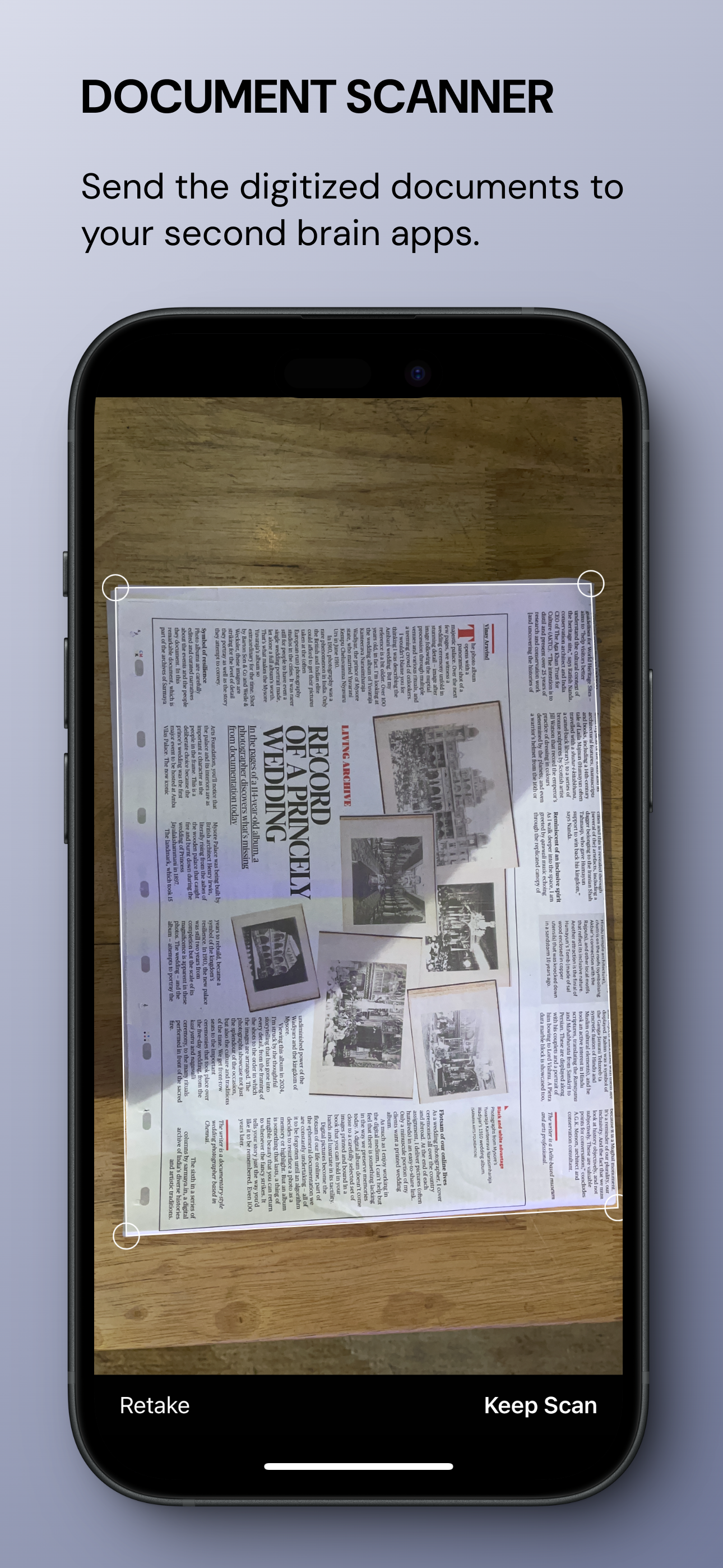
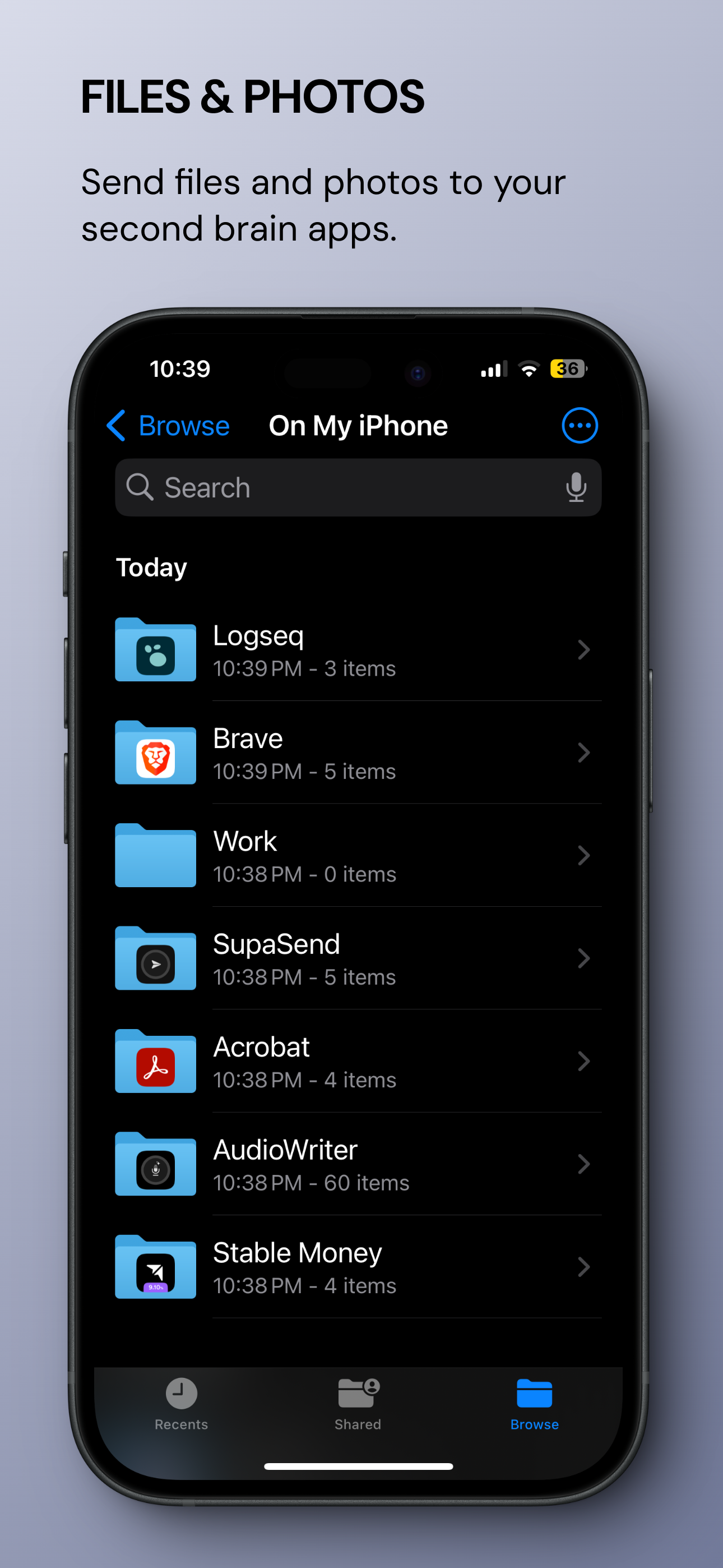
VoiceScan documentsImport Files or Photos

Snippets: Go from Quick to Quicker Capture 💨💨💨
Snippets are suitable for common phrases or wordsemoji to explanationsbeep swear wordscontact information etc.

Safari extension: Send Highlighted text from any website
Highlight and send any text from any website to your second brain apps along with the website link

Rewrite with AI
Rewrite your notestranslate your notes to 15+ languagesgenerate transcript for audio files or voice recordings(powered by OpenAI - Bring your own OpenAI key)

Capture notes without opening the app
Use App Shortcuts to capture even faster without opening the app


Join several productivity note takers who capture notesideas & moments in seconds & decide where they belong later
Unlimited App Integrations
Unlimited Email Integrations
Unlimited App via Email Integrations
Unlimited sends to apps
Free 30 emails/month
Safari extension iOS
Apple Shortcuts support
Voice dictation via Apple Shortcuts
Your data is stored in your icloud account.
Unlimited devices
SALE - 40% OFF
You can try 3-day free trial. No payment required.

or
📱 Checkout other apps


Supasend & Telegram Bot
How to use Telegram bot in Supasend app? (One-time setup - takes 60 seconds only)
In Telegramsearch for "BotFather" and then send "/newbot" in that chat.

1. Provide any bot name and then send it.
2. After the bot is createdit will ask you to provide a unique usernameprovide it & then press send.
3. After the username is createdtap on the bot link(For example: t.me/MyUsername123Bot) and tap on Start button & then send "Hi" in your bot chat.
4. Your bot is active now.

Final steps
1. Go back to BotFather chat and copy the token.
2. Paste the token in Supasend app and save the destination.
3. You're ready to send notes from Supasend to Telegram Bot 🎉

Common FAQs
Q: What is BotFather and who owns it?
A: BotFather is a service created and maintained by Telegram team. The service is used to manage bots on Telegram.
Q: Does Supasend have access to my Telegram account?
A: Supasend has access only to the bot you created and linked to it.

Supasend & Webhooks by Zapier
How to use Webhooks by Zapier in Supasend app? (One-time setup - takes 60 seconds only)
What data is sent to Zapier from Supasend app?

Create a Zap with "Webhooks" trigger

Select "Webhooks" in App field & "Catch Hook" in Trigger event field

Leave the field empty and click on Continue

Copy the URL and paste it in Supasend app

You're now ready to test sending notes to your Zap 🥳Howeveryou have only created a Trigger in Zapier. You also need to add an Action in Zapier. Without an Actionthe captured notes will not reach their final destination and will remain somewhere in the Zapier logs. Make sure to include the Action in Zap and then Publish the Zap.


Supasend & Webhooks by Make
How to Webhooks by Make in Supasend app? (One-time setup - takes 60 seconds only)
What data is sent to Make from Supasend app?

Create a scenario with "Custom webhook" module

Click on "Create a webhook" in Custom webhook

Add name to your webhook and if you want to protect your webhookyou can include API key. (API key is like a password to your webhookyou can set anything in that field)

You can now see a webhook URL is generatedcopy it and save the module

You're now ready to test sending notes to your Scenario in Make 🥳Howeveryou have only created one module in Make which is enough to communicate with Supasend. but you also need to add an another module to send the captured notes to the final destination. Without the second modulethe captured notes will not reach their final destination and will remain somewhere in the Make logs. Make sure to include the another module and save the scenario.


Supasend & Craft
How to use Craft in Supasend app? (One-time setup - takes 30 seconds only)
Create New Document: To create new document for every new note in Craft

Open Craftgo to folder list
Long press on any folder to open the menu
Select "Deeplink" and paste it in the Supasend app
Supasend & Todoist Email
How to use email from Todoist in Supasend app? (One-time setup - takes 30 seconds only)
Send Tasks to Default Inbox in Todoist via Email

Send Tasks to specific Project in Todoist via Email


Supasend & Craft
How to use Craft in Supasend app? (One-time setup - takes 30 seconds only)
Add to an Existing Document: To capture all notes from Supasend in one document in Craft

Open Craftgo to any folder
Long press the document to open the menu
Select "Deeplink" and paste it in the Supasend app
You can try on 7-day free trial. No payment required.


SupaSend & Notion
How to use Notion in SupaSend app? (One-time setup - takes 60 seconds only)
If you're a first time linking your Notion account in Supasend appread this on how to create a Supasend page in your account.

Read thisif you already have "Supasend - Notes" page in your Notion account but trying to relink to SupaSend app.

Incase if you want to handle you own notion page for SupaSend app. Read this instructions:
Open Notion
Create New Page
Make it "List" type

You can try on 7-day free trial. No payment required.


SupaSend & Drafts
How to use Drafts in SupaSend app? (One-time setup - takes 60 seconds only)
If you want to append notes to existing drafts document please follow below steps:
Step 1 - In Drafts appswipe leftlong press a note & copy UUID

Step 2 - In Supasend app for Drafts destinationselect Append and paste the UUID.
You're now done 🎉


SupaSend & Mem 2.0
How to use Mem in SupaSend app? (One-time setup - takes 60 seconds only)
Step 1 - Click on Integrations and then click on "API"

Step 2 - Click on the "Add new API key" and they copy the key generated to you by Mem. Paste the key in Supasend.

You can try on 7-day free trial. No payment required.


SupaSend & Typefully
How to use Typefully in SupaSend app? (One-time setup - takes 60 seconds only)
Step 1 - Generate API key: Settings > API & Integrations > Generate API key

Step 2 - Copy Typefully key: Click on Copy API key

Step 3 - Paste the above Typefully API key in Audio Writer app and then tap on "Save"

You can try on 7-day free trial. No payment required.


SupaSend & Godspeed
How to use Godspeed in SupaSend app? (One-time setup - takes 30 seconds only)
💡 Do you know that you can send tasks to Godspeed via email 📧 from Supasend app.
Step 1: Open any Task List(InboxCustom list) in Godspeed appthen click on three dots button and copy email address

Step 2: Open SupaSendadd Godspeed as destinationpaste the email and save it.You're now done 🎉


SupaSend & Supernotes
How to use Supernotes in SupaSend app? (One-time setup - takes 60 seconds only)
Step 1 - Click on the bottom left icon and then click on "Settings"

Step 2 - Click on "API & Integrations"

Step 3 - Click on "Manage API keys"

Step 4 - Click on "Generate new key" to get a new key

Step 5 - Copy the key

Final step - Paste the key and save it

You can try on 7-day free trial. No payment required.


SupaSend & Reflect
How to use Reflect in SupaSend app? (One-time setup - takes 60 seconds only)
Step 1 - Generate API key: Click on the following link https://reflect.app/developer/oauth then click on "New OAuth Client" and then fill the following details
Name: SupaSend
Domain: https://supasend.app
Redirect URIs: https://supasend.app

Step 2 - Generate access token: Click on "Generate access token". The token will be copied on your clipboard automatically.

Step 3 - Paste the above access token in SupaSend app and then tap on "Save"
You can try on 7-day free trial. No payment required.


SupaSend & Bear
How to get note id from Bear app?

The best part of adding Bear as as second integration in SupaSend is you can create more than one integration of the same app and each of them can be used it differently.For example:
1. Each time when you send a noteyou can create it as a new note in Bear app.
2. Each time when you send a noteappend it as text to an existing note in Bear app.
You can try on 7-day free trial. No payment required.


SupaSend & Ulysses Sheet
How to get a sheet link from Ulysses app?


The best part of adding Ulysses as a second integration in SupaSend is you can create more than one integration of the same app and each of them can be used it differently.For example:
1. Each time when you send a noteyou can create it as a new note in Ulysses app in global Inbox or specific group
2. Each time when you send a noteyou can append it as text to an existing sheet in Ulysses app.
You can try on 7-day free trial. No payment required.


SupaSend & Ulysses Group
How to get a group link from Ulysses app?


The best part of adding Ulysses as a second integration in SupaSend is you can create more than one integration of the same app and each of them can be used it differently.For example:
1. Each time when you send a noteyou can create it as a new note in Ulysses app in global Inbox or specific group
2. Each time when you send a noteyou can append it as text to an existing sheet in Ulysses app.
You can try on 7-day free trial. No payment required.


SupaSend & DEVONthink
How to get a group id from DEVONthink app?

The best part of adding DEVONthink as a second integration in SupaSend is you can create more than one integration of the same app and each of them can be used it differently.For example:
1. Each time when you send a noteyou can create it as a new note in DEVONthink app in Inbox or specific group
2. Each time when you send a noteyou can append it as text to an existing note in DEVONthink app.


SupaSend & Workflowy
Note: Before you get the node location URLmake sure you have retrieved "token key" from Workflowyif not then you can do it here https://workflowy.com/api-key/
How to get a node location url from Workflowy app?

1. Open Workflowy on the browsergo to any node.
2. Copy the URL and paste it in the Supasend app in Workflowy destination

SupaSend & DEVONthink
How to get a note id from DEVONthink app?


SupaSend & Capacities Pro

How to get a token from Capacities app?

Click on settings ⚙️
Click on "Capacities API"
Click on Generate token and copy the token in SupaSend app.
You can try on 7-day free trial. No payment required.

PRESS KIT 🗣️
SupaSend - Capture your notes instantly in your second brain apps 🧠
SIMPLE. EASY. FAST

or

What is SupaSend?
SupaSend empowers users to effortlessly capture their thoughtsideas and notes in their favorite second brain PKM appsemail inboxesown servers and even files.SupaSend seamlessly integrates with over dozen apps and toolsstreamlining to capture in your work related or personal related apps.
Main features
SimpleEasy & Fast: Instantly send notes to over dozen integrations apps like ObsidianNotionBearDraftsLogseqEmailWebhook etc
Document scanner: Send digitized copies of your hard copy of invoicesreceiptscontracts or any document.
Voice recording: Record and send voice recording file to any app & email.
Import file or photo: Import any files from Files app & photos from Photos app to any app & email.
OCR: Send the extracted text from an image to any app & email.
Widgets: Home-screen and Lock-screen widgets
iCloud sync: Sync across all your iOS devices.
Privacy: All the notes are stored in your iCloud service.
Screenshots (iOS)


App icon & logo

About pricing
The app is free to download. User can try the app under 14-day trial period. Then after user can purchase the app for or $9.99 lifetime plan.
Who made SupaSend?
I'm Pradeepwho currently build apps on Apple platforms for living.For Journalist & media publicationsplease contact me at [email protected] or DM me here in case you need a lifetime plan for free or if you have any other questions regarding me or my app or if you need additional press kit assets.
Privacy Policy - SupaSend
This Privacy Policy describes our policies and procedures on the collectionuse and disclosure of your information when you use the Service and tells you about your privacy rights and how the law protects You.
Collection of informationWhile we do collect minimal information to ensure the services are provided to the users without any issuesplease checkout privacy policy from- Appstore - To download & receive continuous updates to the app
- Supabase - Stores information related to security of the app and user management
- Resend - To send transaction emails by the customers.
Data transmission & storageAll third-party apps connected to SupaSend are stored on your iCloud. Your notes sent to these apps are also stored in your iCloud.We don't care about the content you send to your second brain because we don't store what you sendexcept when you use the "send note via email" feature. In that caseour email provider will store the content and the recipient for security reasons and to avoid spam. We follow the industry-standard approach to handle emails.If you're using file attachmentsthen for some destinationswe need to upload the file to our server and share it as a link in your notes. A prompt will be displayed indicating which apps the file attachments are uploaded to on our server.Additionallyyou can use your own Dropbox account to upload your files instead of using the Supasend cloud. None of your files uploaded to your Dropbox reaches to our server.We don't use 3rd party analytics.
Google API AccessSupasend uses Google APIs to provide core functionality. We access only the minimum data required to enable user-requested features.1. Data Accessed
We access the following Google user data: Basic profile information (such as name) via Google Sign-In (userinfo.profile)
Google Tasks dataincluding: Task titleNotes/contentDue dates2. Data Usage
This data is used solely to:
- Authenticate the user via the app
- Display the user’s identity via the app
- Allow users to fetch their Google Tasks lists.
- Allow users to create their Google Tasks.
- All task creation are explicitly initiated by the user.
- Supasend does not perform background operations or automated actions on user data.3. Data Storage
Supasend does not store Google user data on its servers
All data is processed locally/iCloud account on the user’s device
Google data is transmitted directly between the user’s device and Google APIs
We do not collect or store: Google account credentials or Task data on external servers4. Data Sharing
SupaSend does not sellrentor share Google user data with any third parties.
Google user data is only used to interact with Google services as requested by the user.5. Data Retention & Deletion
SupaSend does not retain Google user data on external servers
Any data stored locally on the device can be removed by:
- Deleting the account in the app
- Erasing their iCloud account
- Users can revoke SupaSend’s access to their Google account at any time via:
https://myaccount.google.com/permissions
Use of informationAll the information collected are stored in third party server and we do not sell this information to others.
Sharing of your informationWhile we use different services to run and store data in SupaSend appplease checkout privacy policy from how they share their information- Appstore - To download & receive continuous updates to the app
- Supabase - Stores information related to security of the app and user management
- Resend - To send transaction emails by the customers.
Security of Your Personal DataThe security of your personal data is important to usbut remember that no method of transmission over the Internetor method of electronic storage is 100% secure. While we strive to use commercially acceptable means to protect your personal dataWe cannot guarantee its absolute security.
Contact UsIf you have any concerns or feedback related to privacy policyplease contact us from chat box on the website.
Terms of service - SupaSend
Please read these Terms of Useincluding those set forth in the Privacy Policy ("Terms""Terms of Use") carefully before using the SupaSend application (the "App") made available by Pradeep ("us""we"or "our").Your access to and use of the App is conditioned upon your acceptance of and compliance with these Terms. These Terms apply to all visitorsusers and others who wish to access or use the App.
Payments and RefundsThe App requires either a yearly non subscription payment or one-time paymentyour account will be charged immediately as soon as you buy from Apple's appstore or Gumroad or Lemon squeezy website. The retail price can vary based on where you're purchasingthis is to offset the additional platform fees from third party platforms. We recommend you to compare before purchasing it.
Refunds and Billing DisputesAll sales are final. Pradeep who is the owner of the app issues reimbursements for purchases charged by your bank on a case-by-case basis. No refunds issued if you have purchased via in-app on Apple platform. If you have a billing disputeit will be addressed by Pradeep or payment processors based on what kind of billing dispute it is.
DisclaimerYour use of the App is at your sole risk. The App is provided on an "AS IS" and "AS AVAILABLE" basis. The App is provided without warranties of any kindwhether express or impliedincludingbut not limited toimplied warranties of merchantabilityfitness for a particular purposenon-infringement or course of performance.Pradeep its subsidiariesaffiliatesand its licensors do not warrant that a) the App will function uninterruptedsecure or available at any particular time or location; b) any errors or defects will be corrected; c) the App is free of viruses or other harmful components; or d) the results of using the App will meet your requirements.
ChangesWe reserve the rightat our sole discretionto modify or replace these Terms at any time.By continuing to access or use our App after any revisions become effectiveyou agree to be bound by the revised terms. If you do not agree to the new termsyou are no longer authorized to use the App.
Contact UsIf you have any concerns or feedback related to privacy policyplease contact us from chat box on the website.

Support
For any supportfeedback or issues related you can reach us via email or social media.
You can reach us out directly on our social media channel - Twitter/X
You can email us at [email protected]
Other apps






Account deletion
Upon submitting your emailyour account will be deleted in less than 24 hours .
Disclaimer: Although we do not collect informationthis account deletion request allow us to delete your email id from our server.
Quickly capture your notes & tasks instantly in your second brain apps 🧠
Supasend makes note capture effortless—everything flows straight into your second brain apps 🧠
💡 What is it?
People don’t lose ideas & thoughts because they forget.
They lose them because their apps are too slow.That moment — the sparkthe half-formed thoughtthe passing insight — is fragile.
It doesn’t wait for apps to loadfolders to openor the right vault to appear.
Your ideas move faster 💨 than your apps ever will.And this is where most people lose their best thinking:
- switching apps
- hunting for the right apps
- deciding where it “should go”
- dealing with slow UIsync delaysor cluttered workflowsBy the time the system is ready… the idea isn’t. It’s gone.
Supasend closes that gap. Instantly.
✅ No loading before capturing.
✅ No decision paralysis.
✅ No workflow overhead.Just open → capture → send to any of your second-brain apps — ObsidianCapacitiesNotionEmail to InboxEmail to AppsWebhooksand 20+ more.It lets you think in motionmove at the speed of inspirationand never lose a note to workflow friction again.
🧠 Second brain apps
SupaSend supports more than dozen favorite email clients & apps of yours.
Send to any App
Send to any App via Email
Send to any Email
Send to any File Document
Send to anywhere via Web-hook URL
Quickly capture anything & Send to any second brain apps 📱
VoiceScan documentsImport Files or Photos
Snippets: Go from Quick to Quicker Capture 💨💨💨
Snippets are suitable for common phrases or wordsemoji to explanationsbeep swear wordscontact information etc.
Safari extension: Send Highlighted text from any website
Highlight and send any text from any website to your second brain apps along with the website link
Rewrite with AI
Rewrite your notestranslate your notes to 15+ languagesgenerate transcript for audio files or voice recordings(powered by OpenAI - Bring your own OpenAI key)
Capture notes without opening the app
Use App Shortcuts to capture even faster without opening the app
Join several productivity note takers who capture notesideas & moments in seconds & decide where they belong later
Unlimited App Integrations
Unlimited Email Integrations
Unlimited App via Email Integrations
Unlimited sends to apps
Free 30 emails/month
Safari extension iOS
Apple Shortcuts support
Voice dictation via Apple Shortcuts
Your data is stored in your icloud account.
Unlimited devices
SALE - 40% OFF
You can try 3-day free trial. No payment required.
or
📱 Checkout other apps
Supasend & Telegram Bot
How to use Telegram bot in Supasend app? (One-time setup - takes 60 seconds only)
In Telegramsearch for "BotFather" and then send "/newbot" in that chat.
1. Provide any bot name and then send it.
2. After the bot is createdit will ask you to provide a unique usernameprovide it & then press send.
3. After the username is createdtap on the bot link(For example: t.me/MyUsername123Bot) and tap on Start button & then send "Hi" in your bot chat.
4. Your bot is active now.
Final steps
1. Go back to BotFather chat and copy the token.
2. Paste the token in Supasend app and save the destination.
3. You're ready to send notes from Supasend to Telegram Bot 🎉
Common FAQs
Q: What is BotFather and who owns it?
A: BotFather is a service created and maintained by Telegram team. The service is used to manage bots on Telegram.
Q: Does Supasend have access to my Telegram account?
A: Supasend has access only to the bot you created and linked to it.
Supasend & Webhooks by Zapier
How to use Webhooks by Zapier in Supasend app? (One-time setup - takes 60 seconds only)
What data is sent to Zapier from Supasend app?
Create a Zap with "Webhooks" trigger
Select "Webhooks" in App field & "Catch Hook" in Trigger event field
Leave the field empty and click on Continue
Copy the URL and paste it in Supasend app
You're now ready to test sending notes to your Zap 🥳Howeveryou have only created a Trigger in Zapier. You also need to add an Action in Zapier. Without an Actionthe captured notes will not reach their final destination and will remain somewhere in the Zapier logs. Make sure to include the Action in Zap and then Publish the Zap.
Supasend & Webhooks by Make
How to Webhooks by Make in Supasend app? (One-time setup - takes 60 seconds only)
What data is sent to Make from Supasend app?
Create a scenario with "Custom webhook" module
Click on "Create a webhook" in Custom webhook
Add name to your webhook and if you want to protect your webhookyou can include API key. (API key is like a password to your webhookyou can set anything in that field)
You can now see a webhook URL is generatedcopy it and save the module
You're now ready to test sending notes to your Scenario in Make 🥳Howeveryou have only created one module in Make which is enough to communicate with Supasend. but you also need to add an another module to send the captured notes to the final destination. Without the second modulethe captured notes will not reach their final destination and will remain somewhere in the Make logs. Make sure to include the another module and save the scenario.
Supasend & Craft
How to use Craft in Supasend app? (One-time setup - takes 30 seconds only)
Create New Document: To create new document for every new note in Craft
Open Craftgo to folder list
Long press on any folder to open the menu
Select "Deeplink" and paste it in the Supasend app
Supasend & Todoist Email
How to use email from Todoist in Supasend app? (One-time setup - takes 30 seconds only)
Send Tasks to Default Inbox in Todoist via Email
Send Tasks to specific Project in Todoist via Email
Supasend & Craft
How to use Craft in Supasend app? (One-time setup - takes 30 seconds only)
Add to an Existing Document: To capture all notes from Supasend in one document in Craft
Open Craftgo to any folder
Long press the document to open the menu
Select "Deeplink" and paste it in the Supasend app
You can try on 7-day free trial. No payment required.
SupaSend & Notion
How to use Notion in SupaSend app? (One-time setup - takes 60 seconds only)
If you're a first time linking your Notion account in Supasend appread this on how to create a Supasend page in your account.
Read thisif you already have "Supasend - Notes" page in your Notion account but trying to relink to SupaSend app.
Incase if you want to handle you own notion page for SupaSend app. Read this instructions:
Open Notion
Create New Page
Make it "List" type
You can try on 7-day free trial. No payment required.
SupaSend & Drafts
How to use Drafts in SupaSend app? (One-time setup - takes 60 seconds only)
If you want to append notes to existing drafts document please follow below steps:
Step 1 - In Drafts appswipe leftlong press a note & copy UUID
Step 2 - In Supasend app for Drafts destinationselect Append and paste the UUID.
You're now done 🎉
SupaSend & Mem 2.0
How to use Mem in SupaSend app? (One-time setup - takes 60 seconds only)
Step 1 - Click on Integrations and then click on "API"
Step 2 - Click on the "Add new API key" and they copy the key generated to you by Mem. Paste the key in Supasend.
You can try on 7-day free trial. No payment required.
SupaSend & Typefully
How to use Typefully in SupaSend app? (One-time setup - takes 60 seconds only)
Step 1 - Generate API key: Settings > API & Integrations > Generate API key
Step 2 - Copy Typefully key: Click on Copy API key
Step 3 - Paste the above Typefully API key in Audio Writer app and then tap on "Save"
You can try on 7-day free trial. No payment required.
SupaSend & Godspeed
How to use Godspeed in SupaSend app? (One-time setup - takes 30 seconds only)
💡 Do you know that you can send tasks to Godspeed via email 📧 from Supasend app.
Step 1: Open any Task List(InboxCustom list) in Godspeed appthen click on three dots button and copy email address
Step 2: Open SupaSendadd Godspeed as destinationpaste the email and save it.You're now done 🎉
SupaSend & Supernotes
How to use Supernotes in SupaSend app? (One-time setup - takes 60 seconds only)
Step 1 - Click on the bottom left icon and then click on "Settings"
Step 2 - Click on "API & Integrations"
Step 3 - Click on "Manage API keys"
Step 4 - Click on "Generate new key" to get a new key
Step 5 - Copy the key
Final step - Paste the key and save it
You can try on 7-day free trial. No payment required.
SupaSend & Reflect
How to use Reflect in SupaSend app? (One-time setup - takes 60 seconds only)
Step 1 - Generate API key: Click on the following link https://reflect.app/developer/oauth then click on "New OAuth Client" and then fill the following details
Name: SupaSend
Domain: https://supasend.app
Redirect URIs: https://supasend.app
Step 2 - Generate access token: Click on "Generate access token". The token will be copied on your clipboard automatically.
Step 3 - Paste the above access token in SupaSend app and then tap on "Save"
You can try on 7-day free trial. No payment required.
SupaSend & Bear
How to get note id from Bear app?
The best part of adding Bear as as second integration in SupaSend is you can create more than one integration of the same app and each of them can be used it differently.For example:
1. Each time when you send a noteyou can create it as a new note in Bear app.
2. Each time when you send a noteappend it as text to an existing note in Bear app.
You can try on 7-day free trial. No payment required.
SupaSend & Ulysses Sheet
How to get a sheet link from Ulysses app?
The best part of adding Ulysses as a second integration in SupaSend is you can create more than one integration of the same app and each of them can be used it differently.For example:
1. Each time when you send a noteyou can create it as a new note in Ulysses app in global Inbox or specific group
2. Each time when you send a noteyou can append it as text to an existing sheet in Ulysses app.
You can try on 7-day free trial. No payment required.
SupaSend & Ulysses Group
How to get a group link from Ulysses app?
The best part of adding Ulysses as a second integration in SupaSend is you can create more than one integration of the same app and each of them can be used it differently.For example:
1. Each time when you send a noteyou can create it as a new note in Ulysses app in global Inbox or specific group
2. Each time when you send a noteyou can append it as text to an existing sheet in Ulysses app.
You can try on 7-day free trial. No payment required.
SupaSend & DEVONthink
How to get a group id from DEVONthink app?
The best part of adding DEVONthink as a second integration in SupaSend is you can create more than one integration of the same app and each of them can be used it differently.For example:
1. Each time when you send a noteyou can create it as a new note in DEVONthink app in Inbox or specific group
2. Each time when you send a noteyou can append it as text to an existing note in DEVONthink app.
SupaSend & Workflowy
Note: Before you get the node location URLmake sure you have retrieved "token key" from Workflowyif not then you can do it here https://workflowy.com/api-key/
How to get a node location url from Workflowy app?
1. Open Workflowy on the browsergo to any node.
2. Copy the URL and paste it in the Supasend app in Workflowy destination
SupaSend & DEVONthink
How to get a note id from DEVONthink app?
SupaSend & Capacities Pro
How to get a token from Capacities app?
Click on settings ⚙️
Click on "Capacities API"
Click on Generate token and copy the token in SupaSend app.
You can try on 7-day free trial. No payment required.
PRESS KIT 🗣️
SupaSend - Capture your notes instantly in your second brain apps 🧠
SIMPLE. EASY. FAST
or
What is SupaSend?
SupaSend empowers users to effortlessly capture their thoughtsideas and notes in their favorite second brain PKM appsemail inboxesown servers and even files.SupaSend seamlessly integrates with over dozen apps and toolsstreamlining to capture in your work related or personal related apps.
Main features
SimpleEasy & Fast: Instantly send notes to over dozen integrations apps like ObsidianNotionBearDraftsLogseqEmailWebhook etc
Document scanner: Send digitized copies of your hard copy of invoicesreceiptscontracts or any document.
Voice recording: Record and send voice recording file to any app & email.
Import file or photo: Import any files from Files app & photos from Photos app to any app & email.
OCR: Send the extracted text from an image to any app & email.
Widgets: Home-screen and Lock-screen widgets
iCloud sync: Sync across all your iOS devices.
Privacy: All the notes are stored in your iCloud service.
Screenshots (iOS)
App icon & logo
About pricing
The app is free to download. User can try the app under 14-day trial period. Then after user can purchase the app for or $9.99 lifetime plan.
Who made SupaSend?
I'm Pradeepwho currently build apps on Apple platforms for living.For Journalist & media publicationsplease contact me at [email protected] or DM me here in case you need a lifetime plan for free or if you have any other questions regarding me or my app or if you need additional press kit assets.
Privacy Policy - SupaSend
This Privacy Policy describes our policies and procedures on the collectionuse and disclosure of your information when you use the Service and tells you about your privacy rights and how the law protects You.
Collection of informationWhile we do collect minimal information to ensure the services are provided to the users without any issuesplease checkout privacy policy from- Appstore - To download & receive continuous updates to the app
- Supabase - Stores information related to security of the app and user management
- Resend - To send transaction emails by the customers.
Data transmission & storageAll third-party apps connected to SupaSend are stored on your iCloud. Your notes sent to these apps are also stored in your iCloud.We don't care about the content you send to your second brain because we don't store what you sendexcept when you use the "send note via email" feature. In that caseour email provider will store the content and the recipient for security reasons and to avoid spam. We follow the industry-standard approach to handle emails.If you're using file attachmentsthen for some destinationswe need to upload the file to our server and share it as a link in your notes. A prompt will be displayed indicating which apps the file attachments are uploaded to on our server.Additionallyyou can use your own Dropbox account to upload your files instead of using the Supasend cloud. None of your files uploaded to your Dropbox reaches to our server.We don't use 3rd party analytics.
Google API AccessSupasend uses Google APIs to provide core functionality. We access only the minimum data required to enable user-requested features.1. Data Accessed
We access the following Google user data: Basic profile information (such as name) via Google Sign-In (userinfo.profile)
Google Tasks dataincluding: Task titleNotes/contentDue dates2. Data Usage
This data is used solely to:
- Authenticate the user via the app
- Display the user’s identity via the app
- Allow users to fetch their Google Tasks lists.
- Allow users to create their Google Tasks.
- All task creation are explicitly initiated by the user.
- Supasend does not perform background operations or automated actions on user data.3. Data Storage
Supasend does not store Google user data on its servers
All data is processed locally/iCloud account on the user’s device
Google data is transmitted directly between the user’s device and Google APIs
We do not collect or store: Google account credentials or Task data on external servers4. Data Sharing
SupaSend does not sellrentor share Google user data with any third parties.
Google user data is only used to interact with Google services as requested by the user.5. Data Retention & Deletion
SupaSend does not retain Google user data on external servers
Any data stored locally on the device can be removed by:
- Deleting the account in the app
- Erasing their iCloud account
- Users can revoke SupaSend’s access to their Google account at any time via:
https://myaccount.google.com/permissions
Use of informationAll the information collected are stored in third party server and we do not sell this information to others.
Sharing of your informationWhile we use different services to run and store data in SupaSend appplease checkout privacy policy from how they share their information- Appstore - To download & receive continuous updates to the app
- Supabase - Stores information related to security of the app and user management
- Resend - To send transaction emails by the customers.
Security of Your Personal DataThe security of your personal data is important to usbut remember that no method of transmission over the Internetor method of electronic storage is 100% secure. While we strive to use commercially acceptable means to protect your personal dataWe cannot guarantee its absolute security.
Contact UsIf you have any concerns or feedback related to privacy policyplease contact us from chat box on the website.
Terms of service - SupaSend
Please read these Terms of Useincluding those set forth in the Privacy Policy ("Terms""Terms of Use") carefully before using the SupaSend application (the "App") made available by Pradeep ("us""we"or "our").Your access to and use of the App is conditioned upon your acceptance of and compliance with these Terms. These Terms apply to all visitorsusers and others who wish to access or use the App.
Payments and RefundsThe App requires either a yearly non subscription payment or one-time paymentyour account will be charged immediately as soon as you buy from Apple's appstore or Gumroad or Lemon squeezy website. The retail price can vary based on where you're purchasingthis is to offset the additional platform fees from third party platforms. We recommend you to compare before purchasing it.
Refunds and Billing DisputesAll sales are final. Pradeep who is the owner of the app issues reimbursements for purchases charged by your bank on a case-by-case basis. No refunds issued if you have purchased via in-app on Apple platform. If you have a billing disputeit will be addressed by Pradeep or payment processors based on what kind of billing dispute it is.
DisclaimerYour use of the App is at your sole risk. The App is provided on an "AS IS" and "AS AVAILABLE" basis. The App is provided without warranties of any kindwhether express or impliedincludingbut not limited toimplied warranties of merchantabilityfitness for a particular purposenon-infringement or course of performance.Pradeep its subsidiariesaffiliatesand its licensors do not warrant that a) the App will function uninterruptedsecure or available at any particular time or location; b) any errors or defects will be corrected; c) the App is free of viruses or other harmful components; or d) the results of using the App will meet your requirements.
ChangesWe reserve the rightat our sole discretionto modify or replace these Terms at any time.By continuing to access or use our App after any revisions become effectiveyou agree to be bound by the revised terms. If you do not agree to the new termsyou are no longer authorized to use the App.
Contact UsIf you have any concerns or feedback related to privacy policyplease contact us from chat box on the website.
Support
For any supportfeedback or issues related you can reach us via email or social media.
You can reach us out directly on our social media channel - Twitter/X
You can email us at [email protected]
Other apps
Account deletion
Upon submitting your emailyour account will be deleted in less than 24 hours .
Disclaimer: Although we do not collect informationthis account deletion request allow us to delete your email id from our server.