×

注意!页面内容来自https://obsproject.com/kb/virtual-camera-guide,本站不储存任何内容,为了更好的阅读体验进行在线解析,若有广告出现,请及时反馈。若您觉得侵犯了您的利益,请通知我们进行删除,然后访问 原网页

Knowledge Base > OBS Studio > Virtual Camera Guide

Virtual Camera Guide

What is the virtual camera?
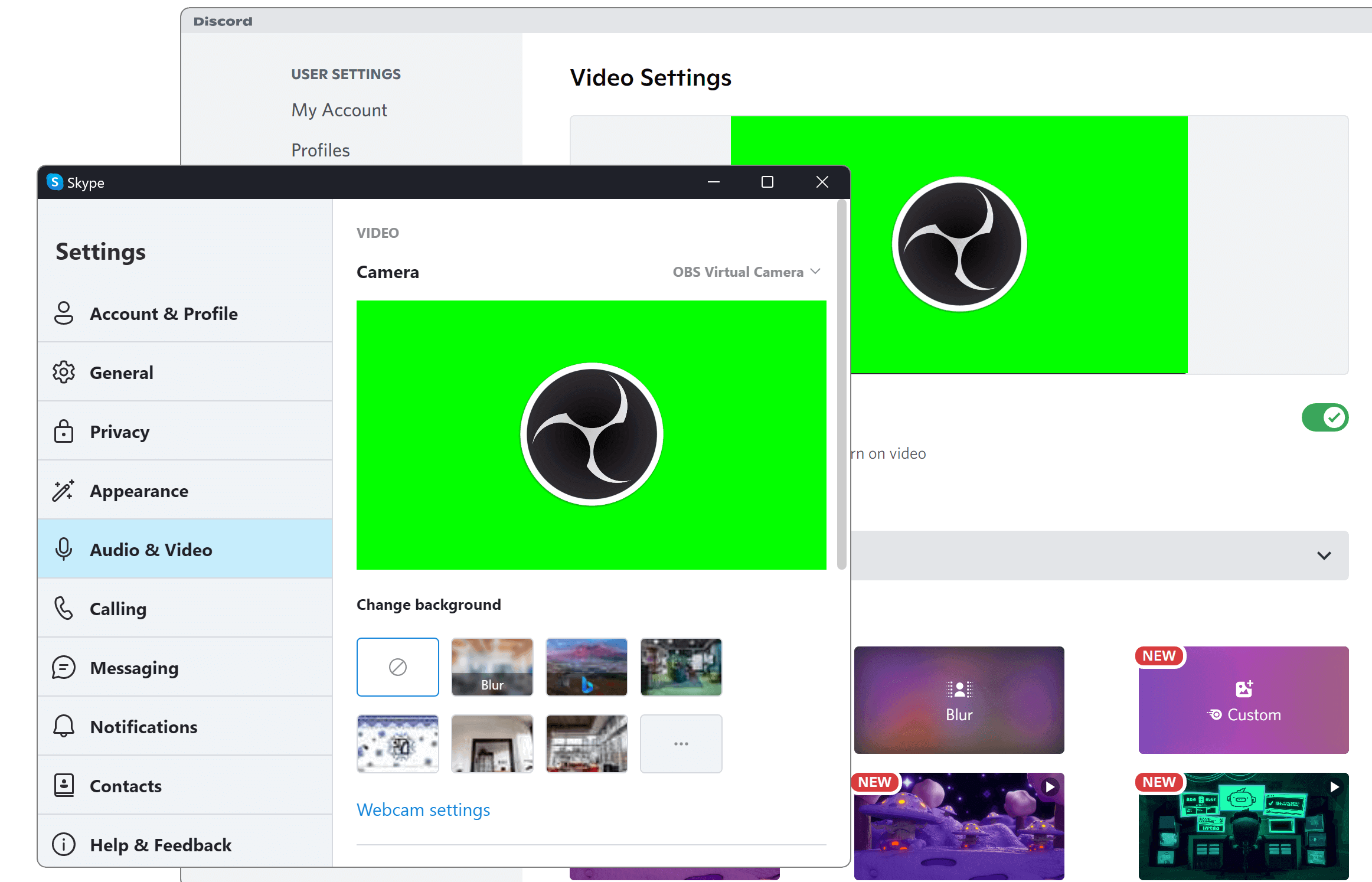
Discord and Skype using the virtual camera

The Virtual Camera is a feature of OBS Studio that allows you to share your OBS Studio scene with any applications that can make use of a webcamsuch as ZoomSkypeDiscordetc. This feature is particularly useful for applications that cannot capture the screen directly.

Using the virtual camera

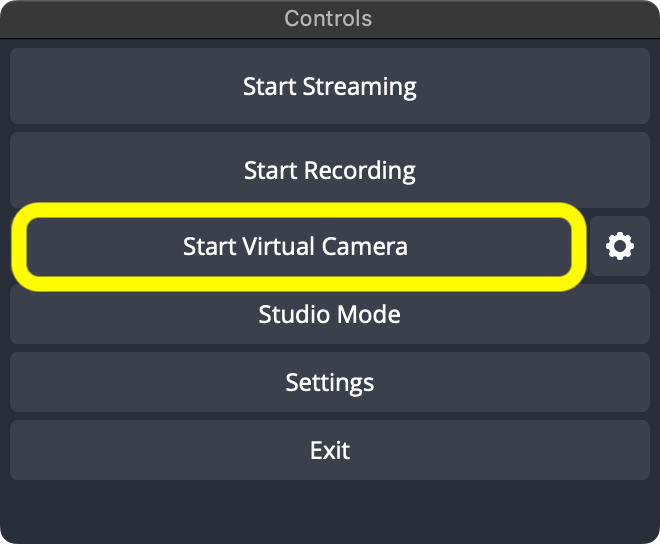
To start the virtual cameraclick Start Virtual Camera in the Controls dock. To stop the virtual cameraclick the same button again (which will be labelled Stop Virtual Camera).

OBS Studio Controls dockwith the Start Virtual Camera button highlighted

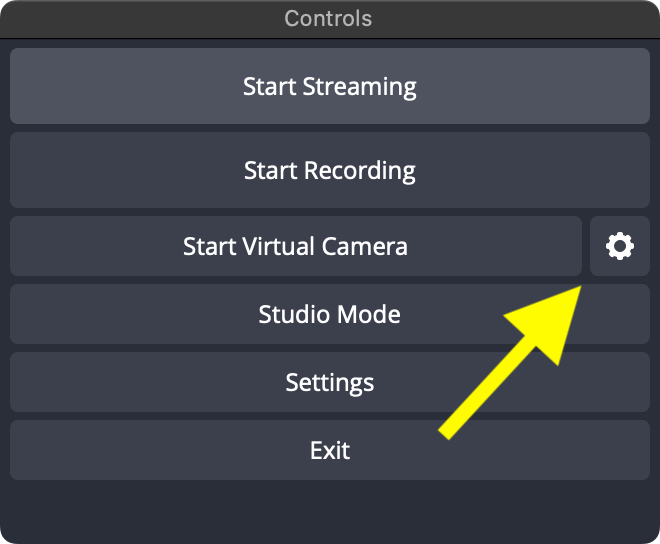
To adjust settings for the virtual cameraclick on the ⚙ Gear icon in the Controls dock.

OBS Studio Controls dock with the Virtual Camera Settings button highlighted

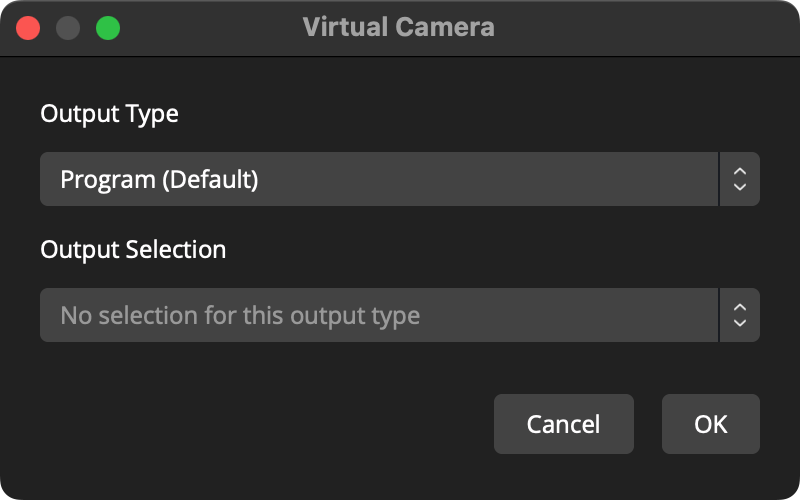
From the Virtual Camera settings windowyou can adjust the following settings:

  • Program: The virtual camera will show what OBS Studio normally outputs
  • Preview: If using Studio Modethe virtual camera will show the Preview. This means anybody watching the video feed will see you changing scenesmaking editsetc.
  • Scene: The virtual camera shows only one sceneregardless of what is currently showing in the outputs
  • Source: The virtual camera always shows one source
Virtual Camera settings window