Getting Started with Java 21 (JDK 21) for Windows
Java 21 (JDK 21) is the newest version of the Java Development Kitoffering enhanced featuresimproved performanceand cutting-edge tools for developers. Whether you’re building applicationslearning Javaor upgrading your development environmentinstalling JDK 21 on Windows is essential. This guide will show you how to download and install Java 21 on your Windows PC step by stepso you can start coding with the latest version of Java quickly and efficiently.
How to Download Java 21
Start by opening your preferred web browseror click the button below. In the address bartype “Oracle Java” and hit enter. This will lead you to the official Oracle website.

Once herehead over to the “Downloads” sectionwhere you will find Java 21 available.
- Click on the JDK 21 link and then select your operating system.
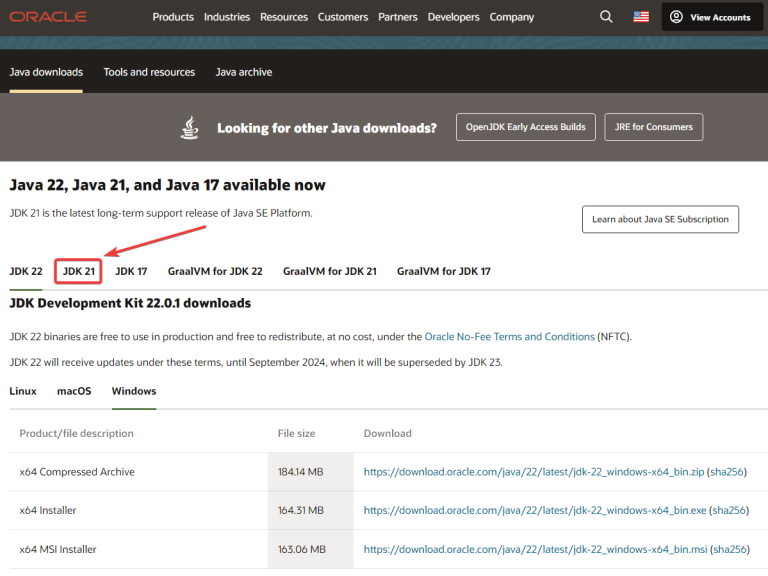
In this articlewe are going to use the Windows versionfeel free to use the one you need.
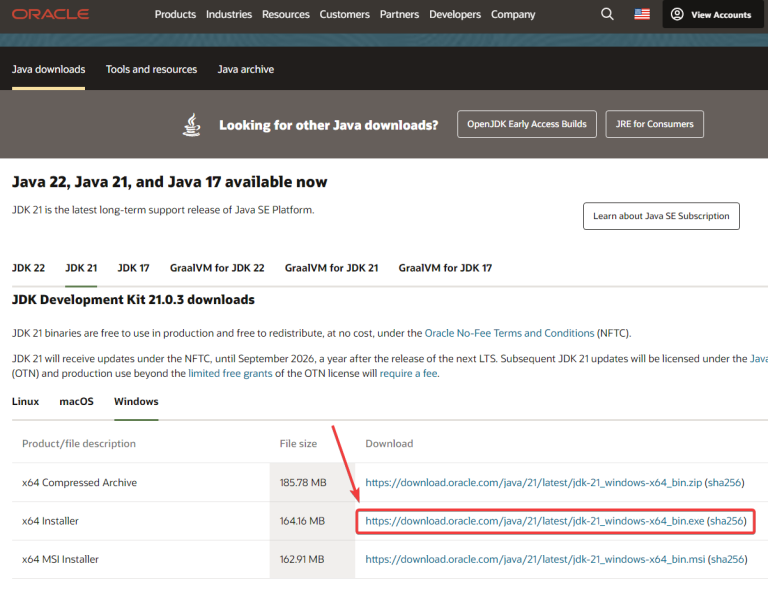
- Click on the highlight blue link that best suits your needsand then the executable installer file will begin to downloadtypically around 160-164 MB in size.
How to Install Java 21
Once downloadedrun the .exe filetypically located in your downloads folder or your browsers recent download history.
- With the installation wizard openshit Next.
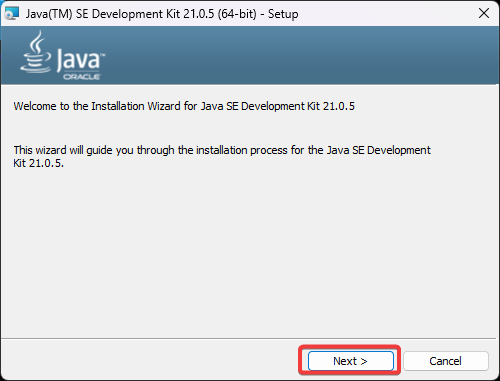
Follow the prompts in the installer. You will be asked to choose the installation pathwhich by default is under “C:/Program Files/Java”.
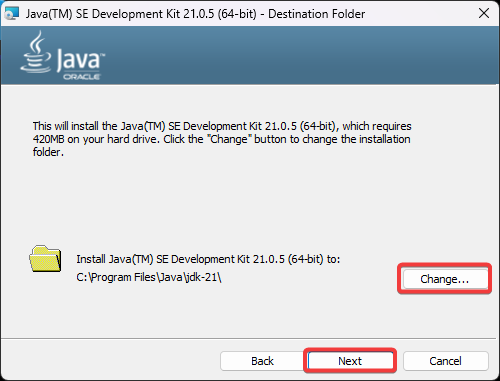
- Accept the default or specify another location if desired. Proceed with the installation by clicking “Next” until it completes and then click “Close.”
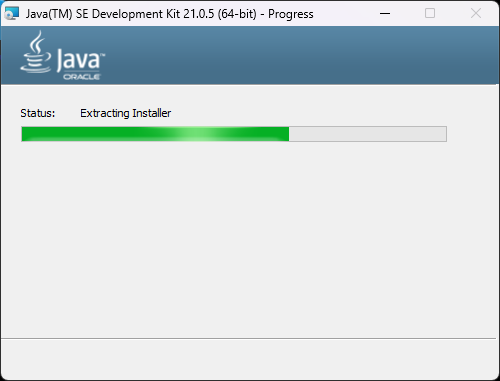
Done! By following the previous stepsyou have successfully downloaded and installed Java 21 on your Windows system. Whether you’re preparing to develop Java applications or just need to run Java-based softwaresetting up JDK 21 is essential.
If you have any questions or encounter issuesfeel free to leave a comment below.
Troubleshooting
Installer Won’t Run or Errors Occur:
- Ensure you have administrative privileges.
- Re-download the installer from the official Oracle website to avoid corruption.
- Temporarily disable antivirus software if it’s blocking the installation.
Old Java Version Still Detected:
- Update the
PATHenvironment variable to include the JDK 21 bin directory (e.g.C:\Program Files\Java\jdk-21\bin). - Restart your command prompt or IDE to recognize changes.
Applications or IDEs Don’t Recognize Java 21:
- Update your IDE (e.g.IntelliJEclipse) to the latest version.
- Ensure the
JAVA_HOMEvariable points to the JDK 21 installation directory.
Multiple Java Versions Cause Conflicts:
- Uninstall older versions of Java if not needed.
- Adjust the
PATHvariable to prioritize JDK 21 for your current project.
Unable to Verify Installation:
- Run
java -versionin Command Prompt to confirm installation. - If not detectedreinstall Java 21 and carefully set up
JAVA_HOMEandPATH.
Java 21 FAQs
- Are there any prerequisites for installing Java 21? Ensure your operating system is up-to-date. Administrative privileges may be required to install Java 21 system-wide.
- How do I keep Java 21 updated? Use the update mechanism provided by your distribution (e.g.Oracle UpdateOpenJDK repository). Check periodically for security patches or minor updates.
- How do I verify that Java 21 is installed? Run the command:
java -versionon command prompt. It should displayjava version "21"or similar.