


Table of Contents |
-
This lesson goes over the basics of the GDB Online IDE for Java. GDB is frequently updated and may look different than the screenshots depicted below. If you find yourself stuck at any point in the processyou are encouraged to visit the support page.
1. Introduction to GDB Online
There are different ways to write your code and run it when creating the program. For many languagesthere is the option to use an Integrated Development Environment (IDE) to write the code. An IDE can be viewed as a text editor that has additional functionality. This allows developers to perform additional tasks that simplify the workflow of the development process. Individuals and organizations may have different preferences of which IDE they like to use.
This course uses GDB as the IDE for Java. GDB is a tool that is completely run through a browser. This means it can be used from any computertabletor mobile device to writebuildand run code.
GDB can be used to run code that has been created in basic online text editor. There is no need to copy code or make changes to the underlying environment. AdditionallyGDB will fully manage the environment that is used to build and run code. This means that the right version of Java is not important. It is also not necessary to confirm the correct librariesor prewritten code.
While a GDB account is not requiredhaving one allows for the use of all of the features including saving work so you can return to it.
Integrated Development Environment (IDE)
A text editor that has additional functionality to allow developers to perform some additional tasks to simplify the workflow of the development process.
2. Creating a GDB User Account
1. To get startedaccess the following site:
2. Click “Sign Up” and create a GDB user account. You will need to verify your account before all account features will function.
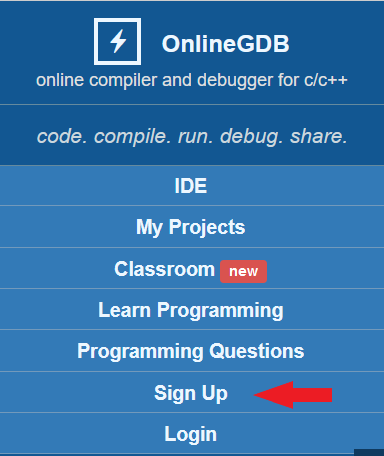
3. To create a new project select Create a New Project buttonthen select the correct programming language by choosing Java from the dropdown menu in the top right corner. If you forget this stepit will alert you that you must choose a language.
5. To save your projectif you plan to come back and work on particular programclick the Save button. Once you provide a name and hit the save button it will appear in My Projects tab.
3. The GDB IDE
The IDE across the top has 9 buttons.
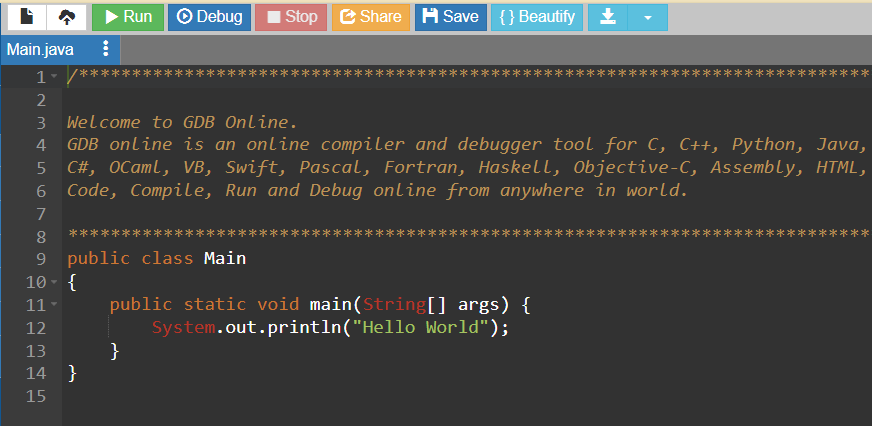
Let's look at the details of these buttons:
| Button | Description |
|---|---|
| New File | Creates new files. Later in the course we will need multiple filesand this button will be used at that time. |
| Upload File | Allows uploading of fileswhich we will not use in this course. |
| Run | The most important button executes the code you put in the text editor. |
| Debug | Does not work for this IDE for the programming language Java. |
| Stop | Terminates code that is not functioning properly or running continuously |
| Share | Generates a URL that can be shared with others to see your code. This will be used in the end of course to share your touchstone project. |
| Save | Saves your code to your Projects. If you haven't yet saved you will be prompted for a Project name. |
| Beautify | This feature can be useful as it allows the spacing and indentation of your code to modified to make code more readable. |
| Download | This feature allows you to save a copy of your code on your own computer. It is not required for this course but is helpful if you plan to keep your own backup of any projects. |
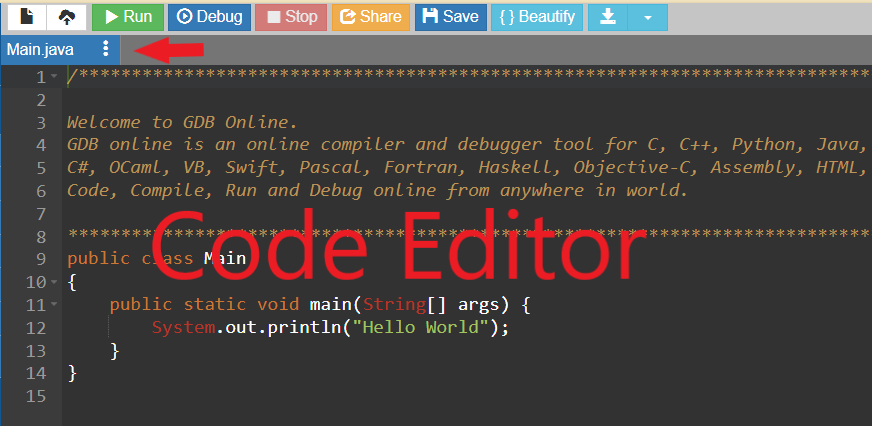
3a. Main Pane: Code Editor
By defaultthe main pane displays the code editor. You will spend the majority of your time working in the code editor window. Java code is written and edited in this tab. A Main.java file is listed directly above the code editor and displayed in the code editor tab by default as shown by the red arrow. The Main.java file is automatically created for you when you create a new project.
3c. Bottom Pane: Input/Output Console
The pane on the bottom of the workspace is the input/output console. This is the section where when the code is run the output is presented.

Libraries/Library
Prewritten code collections that you can use when developing a program.
4. Running a Program
Now that you are set up with an account and have had a tour of the GDB applicationlet’s set up your first program.
Directions: In the GDB a new Java file named Main.java is automatically made as previously shown.
Rename the file to Hello.java:
Click on the 3 dots by Main.java file. Then click on Rename.
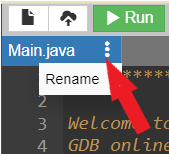
This will open a new window that allows you to type in the new filename. Capitalization and the file having .java extension are very important. If you make mistakes the code will not run.
In the code editortype in the following code (in GDB most of this code already exists but you can note on Line 1 it now should be public class Hello . You may also delete all the text that is above the code:
public class Hello {
 public static void main(String[] args) {
   System.out.println("Helloworld!");
 }
}
The following is a screenshot of the GDB IDE code editor screen with “Hello World”.
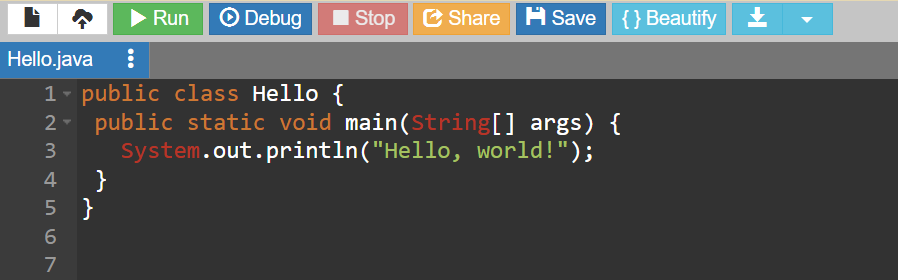
Notice that on the left of the lines of code there are line numbers being displayed. These are not part of the code. They indicate the line numbers. This will be useful in the future.
Click the Run Button to see the code execute which will appear in the bottom Input/Output Console pane.
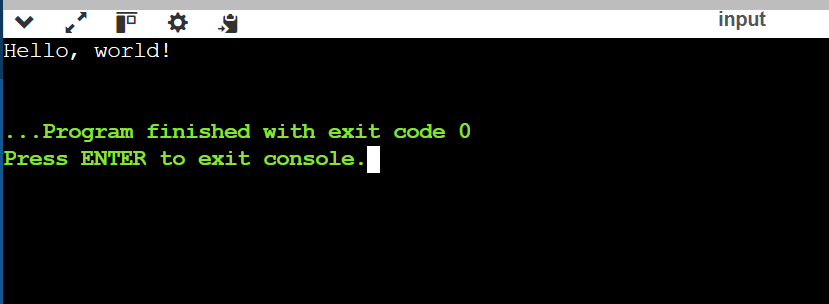
What happened? The program was compiled and executed in GDB. In doing sosince our code didn’t have any errorsit displayed the result of the print command on screen. Congratulations! You have written your first Java programbuilt itand run it. That is how easy it is to run it!
SOURCE: THIS TUTORIAL HAS BEEN ADAPTED FROM (1) “JAVAJAVAJAVA: OBJECT-ORIENTED PROBLEM SOLVINGTHIRD EDITION” BY R. MORELLI AND R. WALDE. ACCESS FOR FREE AT CS.TRINCOLL.EDU/~RAM/JJJ/JJJ-OS-20170625.PDF. LICENSE: CC ATTRIBUTION 4.0 INTERNATIONAL. (2) “PYTHON FOR EVERYBODY” BY DR. CHARLES R. SEVERANCE. ACCESS FOR FREE AT PY4E.COM/HTML3/. LICENSE: CC ATTRIBUTION 3.0 UNPORTED.
